




Descrizione
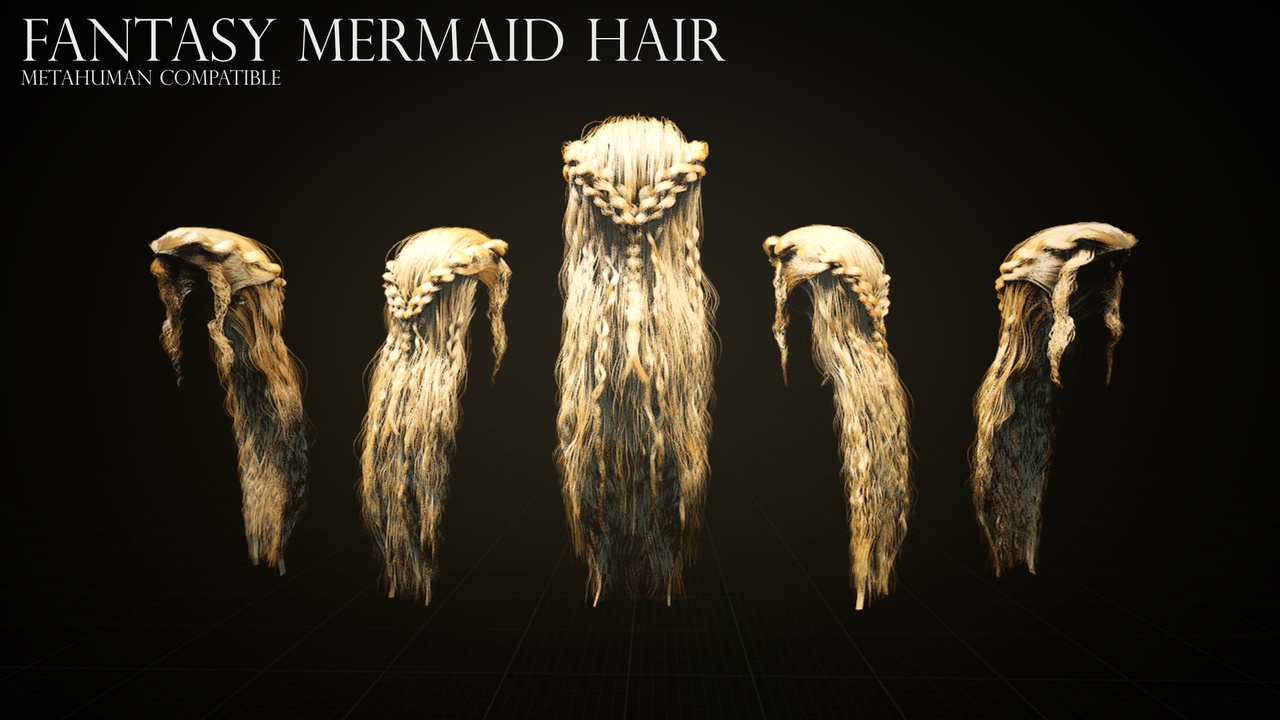
Long Fantasy Mermaid Hair. Made Specifically for Metahuman.
Provided is a blender file with the original curves for the asset, so you can export the alembic format to use with Metahuman in Unreal Engine.
FBX & OBJ formats also provided.
Below are the settings you need to properly export from Blender to Unreal Engine, if you would like to customize the asset.
Select 'Scalp' in blender 'Scene Collection'
File -> Export -> Alembic (.abc)
General Settings: set Scale to 100, check 'Selection Only' & 'Visible Only'
Scene Settings: Set 'Frame End' to 1, Set 'Settings' from 'Render' to 'Viewport'
Geometry: Uncheck all boxes
Export
In Unreal Engine, you'll need the following plugins enabled
Alembic Groom Importer
Groom
Metahuman
Enable Support Compute Skin Cache in Project Settings
Importing Alembic file into Unreal Engine
Navigate to Metahuman Identity Folder -> FemaleHair -> Hair
Right Click -> Import to -> Select Alembic File
Groom Window will pop up, it it doesn't check enabled plugins & alembic render setting are correct
Groom Import Options: x= -90.0, y= 0.0, z= -180.0
Import
Optimal Groom Settings for Fantasy Mermaid Hair
Interpolation: Set Curve Decimation to 0.3
Strands: Set Hair Root Scale to 2, Set Hair Tip Scale to 0.3
Physics: Set Niagra Solver to 'Groom Rods', Substeps = 3, Iteration Count = 6, Gravity = -100, Enable 'Project Bend', Bend Damping = 0.001
Material: Click '+' on Material Slots then add MI_Hair material from Metahuman
Settings are subject to how you want the hair to look, this is just what I have found to look best so far.
Creating a Groom Binding & Attaching to Metahuman
Once Groom is imported, right click and "Create Binding"
In Groom Binding options, set 'Target' Skeletal Mesh to the FaceMesh of your desired Metahuman
Edit Blueprint of your Metahuman
Under Components, Press '+Add' -> Groom (name it whatever you want)
Put Groom under 'Face' Hierarchy
Click on Groom & Scroll to Groom settings in details panel
Add Groom to 'Groom Asset' section & add Groom Binding to 'Binding Asset'
Compile
I hope you enjoy! if you have any questions, please email me at [email protected]