Descrizione
Discord-https://discord.gg/bgsWWJaBV3
Documentation-https://darksaintgames.com/documentations/iconsmith/docs/
Youtube-https://youtu.be/rzboeBVh3mk?si=gAJE3sR23F7WxNin
Icon Smith — Standalone Icon Generator for Unreal Engine 5.8
Turn any mesh or actor into a polished, transparent icon in seconds — without screenshots, without Photoshop, and without wiring anything into your game.
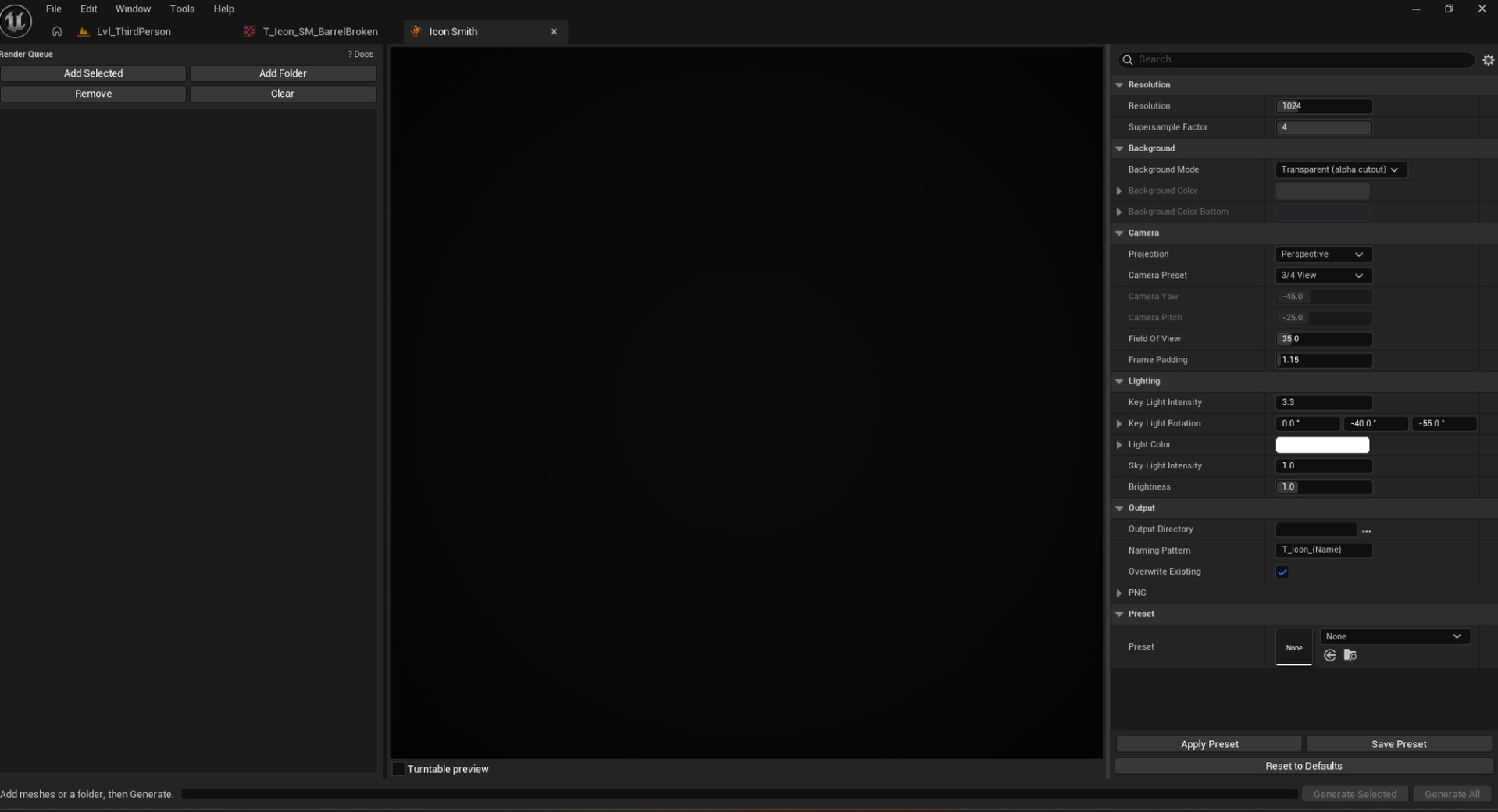
Icon Smith renders inside an isolated capture scene with a fixed studio lighting rig, automatic framing, and supersampled alpha cutout. You pick the sources, tune the look, choose an output folder, and generate. Textures land in your content browser as ready-to-use Texture2D assets. You assign them wherever you want — UMG, data assets, item databases, wikis, whatever your project needs.
Fully standalone. Icon Smith depends on no game module and no other plugin. It never opens, edits, or auto-assigns your source assets.
KEY FEATURES
• High-quality transparent icons — alpha cutout with optional solid or gradient backgrounds
• Isolated capture scene — consistent lighting and framing on every icon
• 4× supersampling — crisp edges at any resolution (16–4096 px)
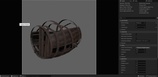
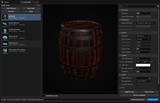
• Live preview viewport — orbit, zoom, turntable; what you see matches capture settings
• Batch render queue — add selected assets, scan whole content folders, generate all at once
• Flexible camera — perspective/orthographic, presets (3/4, front, side, top), custom yaw/pitch, auto frame padding
• Saveable presets — store and share a team-wide icon style via IconSmithPreset data assets
• Content Browser integration — toolbar button, right-click “Generate Icon(s)”, and Add Selected in the queue
• Fast access — play-toolbar button (next to Play), Ctrl+Shift+I, Tools → Icon Smith
• Full-screen docking — built-in editor status bar with Content Drawer so you can browse assets without switching tabs
• Optional PNG export — write disk copies alongside content-browser textures
• Reset to Defaults — recover factory look/output settings in one click
• Bundled HTML documentation — open from ? Docs inside the tool
SUPPORTED SOURCES
• Static Meshes
• Skeletal Meshes
• Actor Blueprints (spawned in the capture scene for preview/render)
TYPICAL USE CASES
• Inventory, crafting, and loot UI grids
• Ability, spell, and skill icons
• Shop and vendor thumbnails
• Equipment loadout slots
• Documentation and wiki art
• Batch icon passes for large item sets
HOW IT WORKS
1. Open Icon Smith from the play toolbar, Ctrl+Shift+I, or the Content Browser.
2. Add meshes via Add Selected, Add Folder, or right-click Generate Icon(s).
3. Preview the selected source in the live viewport and adjust look settings.
4. Set your Output Directory and naming pattern (default: T_Icon_{Name}).
5. Click Generate All or Generate Selected. Icons appear in your output folder.
TECHNICAL DETAILS
• Unreal Engine 5.8
• Editor-only plugin (IconSmithEditor module)
• Windows (Win64)
• Does not ship runtime code
• Does not modify source assets — read-only on inputs, write-only on output textures
• Output textures: UI texture group, sRGB, alpha channel, no mipmaps by default
WHAT’S INCLUDED
• IconSmithEditor plugin source
• In-editor tool UI (render queue, preview, settings, batch bar)
• HTML documentation (Plugins/IconSmith/Docs/index.html)
Icon Smith is part of the Darksaint Games editor tooling line — built for artists and designers who need hundreds of matching icons fast, and for programmers who want a clean pipeline that stays out of their game code.