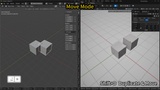
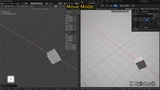
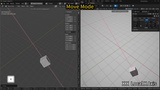
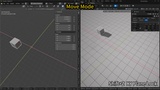
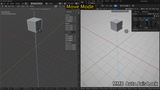
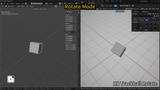
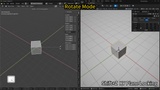
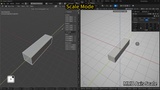
Descrição
Documentation: BlendView Documentation
Video Demo: Watch on YouTube
Free Test Build: Download (Core transforms, viewport navigation, and basic snapping included)
BlendView is an Unreal Editor plugin designed for artists and developers who are familiar with Blender-style viewport controls and transform workflows.
It brings a more direct Blender-style editing experience into Unreal Editor, including mouse-based viewport navigation, modal G/R/S transforms, temporary snapping, and graph editing shortcuts. The goal is simple: reduce workflow friction when moving between Blender and Unreal, and make common editor operations faster and more consistent.
Key Features
Blender-Style Mouse Navigation
MMB: orbit the viewport
Shift + MMB: pan the viewport
Ctrl + MMB: dolly / zoom the viewport
Alt + MMB: align the view to the nearest axis and switch to orthographic view
Hold Shift during RMB flight: increase movement speed
G / R / S Transform Workflow
G: move the current selection
R: rotate the current selection
S: scale the current selection
Shift + D: duplicate the selection and immediately enter move mode
Alt + G / R / S: reset location, rotation, or scale
During transform mode:
LMB / Enter / Space: confirm
RMB / Esc: cancel and restore the previous state
MMB: automatically choose the closest axis constraint
X / Y / Z: constrain to a specific axis
Press X / Y / Z twice: switch between global and local axis constraints
Shift + X / Y / Z: exclude that axis and transform on the remaining plane
Press R twice: use trackball / free rotation
C: clear axis or plane constraints
Numeric input: enter precise move, rotate, or scale values
Shift: precision mode for finer mouse movement
H: hide or show the bottom hint bar
Temporary Snapping
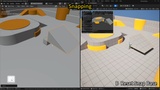
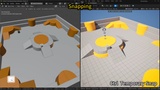
Hold Ctrl during transform mode to enable temporary snapping
B: reset the snapping base point
Move snapping supports grid, vertices, edges, edge midpoints, and surfaces
Rotate and scale use Unreal Editor's current rotation or scale snap step
Snap target types can be enabled or disabled individually
Graph Editing Shortcuts
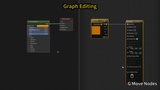
G: move graph nodes
R: rotate graph nodes
S: scale graph nodes
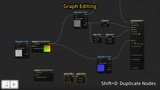
Shift + D: duplicate nodes and enter move mode
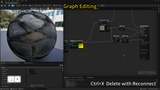
Ctrl + X: delete and reconnect supported nodes
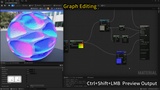
Ctrl + Shift + LMB: quickly preview material nodes
Supported Areas
BlendView works across common Unreal Editor areas, including:
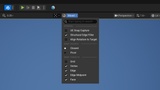
Level Viewport: actor transforms, duplicate-and-move, and temporary snapping
Blueprint Viewport: component transforms, Blueprint components, and Child Actor Components
Asset Viewports: scene component transforms in supported asset editor viewports
Editor Preview Viewports: mouse navigation in supported viewports such as Static Mesh, Skeletal Mesh, Animation, Blueprint, and Material Preview
Graph Editors: common Blueprint, Construction Script, and Material graph editing workflows
Visual Feedback
BlendView includes clear interaction feedback inspired by Blender-style editing:
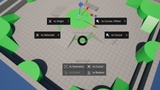
Bottom hint bar showing available actions
Top value overlay showing current transform values
State-aware cursor feedback for move, rotate, and scale modes
Visual guides for operation direction, constraints, and snapping references
Settings and Customization
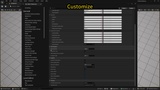
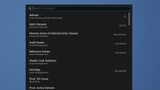
BlendView can be enabled or disabled by module and includes configurable shortcut and behavior options, such as:
Viewport navigation
G / R / S transform commands
Duplicate-and-move
Temporary snapping
Snapping base point
Hint display
RMB flight speed boost
Transform pivot behavior
Graph editing actions
Note
BlendView is an editor workflow plugin. It is designed to improve Unreal Editor interaction and does not add runtime gameplay features.
Some shortcuts may conflict with existing Unreal Editor shortcuts or third-party plugins. Shortcuts and behavior options can be adjusted in the plugin settings.
For full usage details, supported workflows, and configuration instructions, please refer to the documentation linked above.