Descrição
Edit Anim Sequences Instantly Inside the Unreal Editor.
Edit poses, clips, and blends directly in the Unreal Editor — no DCC round-trip required.
Documentation: https://drive.google.com/file/d/1Y_msROjaeIhLK8fOK5oNUBdC7CzJF78S/view?usp=drive_link
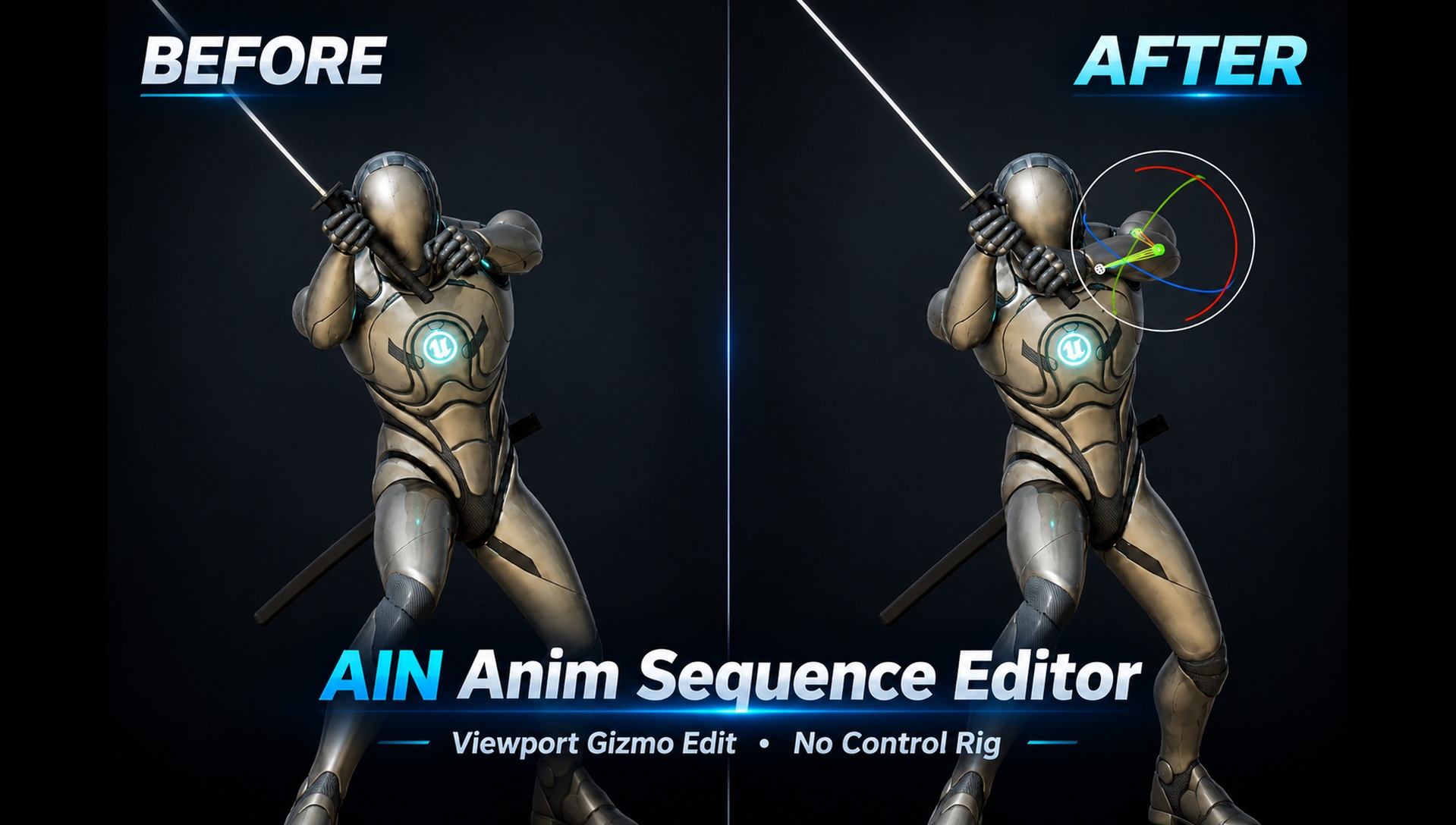
AIN Anim Sequence Editor is an Unreal Engine editor plugin that lets you directly edit AnimSequence bone tracks and clip length in a dedicated viewport. Modify animations directly without Sequencer or Control Rig baking.
Select a bone and drag the gizmo to adjust its pose, then edit a selected timeline range with tools such as Crop, Cut, Hold, Speed, and Reverse. Bring in a selected range from another animation or apply a layered blend. You can also smooth and refine the transition points created when blending two animations.
Use it for pose correction, clip editing, loop creation, mirroring, Pelvis → Root travel transfer, and other animation editing tasks.
Once editing is complete, IK bones can be remapped to match the current FK pose.
Edits remain in the session until Apply, allowing you to review the result before committing the changes to the asset. If you make a mistake while editing, you can easily undo or redo changes.
Features
Viewport Posing — Select a bone and edit Translate / Rotate / Scale using the W / E / R gizmos. Cycle through World / Local / Parent gizmo spaces. With Children Follow enabled, unselected child bones maintain their current world-space positions. Gizmo edits are applied as Fixed Offsets from the source pose, while Fade Pose smoothly blends the offset back toward the original motion.
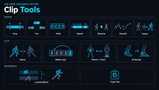
Timeline Range Tools — Apply Crop, Cut, Hold, Speed, Reverse, Smooth, and Tween to a selected range. Extract to New Asset creates a new AnimSequence under Subclips from a Crop or Cut result while leaving the source unchanged.
Clip Tools — Resample FPS to 30 / 60 / 120, Mirror left/right, Make Loop, transfer Pelvis ↔ Root travel, and Remap IK.
Three Clipboards —
Insert Frames: Inserts frames for all bones and increases the clip length.
Paste Keys: Pastes keys for selected bones only without changing the clip length.
Paste Fixed: Applies Fixed Offsets to a selected range.
Reference Anim — Preview another animation alongside the animation being edited. Right-click the timeline and use From REF to insert frames or apply a Layered Blend to selected bones. Data can be copied based on matching bone names even between different Skeletons.
IK Remap — Remap IK bones to match the current FK pose. Enable Auto Remap IK On Apply or use the IK Remap button. IK → FK Map defaults to UE Mannequin bone names.
Curve Editor — Edit Loc / Rot / Scale keys for the focused bone. Supports Smooth, Tween, Fade Pose, and Euler Filter.
Apply, then Save — Apply writes the edits to the bone tracks, supports Undo, and marks the package dirty. Save writes the changes to disk. Discard removes unapplied edits. When Apply changes the clip length, Float Curves, Attributes, Notifies, and Sync Markers are shifted accordingly.
How to Use
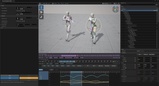
Enable the plugin, then open Tools > AIN Tool > Anim Sequence Editor.
Set an Anim Sequence, select a bone, and edit the pose using W / E / R.
Hold Ctrl or Shift and drag a range on the timeline, then use Crop, Cut, Speed, or other Range Tools.
Optionally set a Reference Anim, then right-click the timeline and use From REF (Insert Frames / Layered Blend).
Click Apply to commit the changes to the asset, then Save to write the package to disk. Enable Auto Remap IK On Apply if you want the feet to follow the FK pose.
Technical Details
Supported Unreal Engine Version: 5.8
Plugin Version: v1.0
Plugin Type: Code Plugin, C++, Editor-only (not included in Runtime / packaged games)
Module: AIN_AnimSequenceEditor (Editor)
Category: Animation
Platform: Win64 Editor
Blueprint: 0
Support: [email protected]