


Descripción
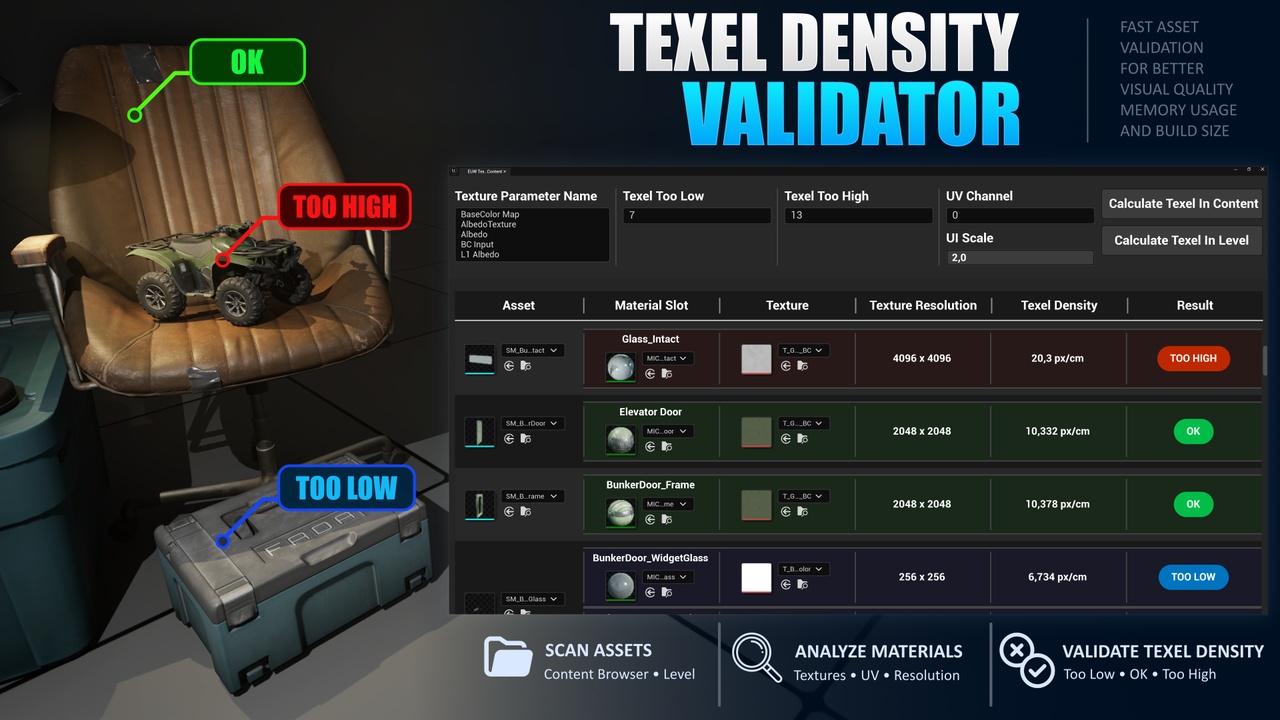
Texel Density Validator is a Editor Utility that helps developers maintain visual consistency while managing texture memory usage and disk space. Quickly scan assets, analyze material slots, extract textures, and identify Texel Density issues that may affect visual quality, memory consumption, and project size.
Whether you're working with Static Meshes, Skeletal Meshes, or Blueprints, Texel Density Validator provides a convenient workflow for checking assets directly from the Content Browser or within your level.
Features
Static Mesh Support - Validate Texel Density on Static Mesh assets.
Skeletal Mesh Support - Validate Texel Density on Skeletal Mesh assets.
Blueprint Support - Validate supported mesh components contained in Blueprint assets.
Content Browser Validation - Scan assets directly from the Content Browser.
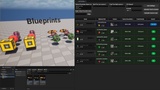
Level Validation - Validate placed assets directly in your level.
Material Slot Analysis - Extract Material Instances and textures for every material slot used by an asset.
Flexible Texture Parameter Detection - Specify multiple texture parameter names in a list to support different Master Material setups, or use a single parameter name for a specific workflow.
Configurable Texel Density Range - Set the minimum and maximum acceptable Texel Density using the Texel Too Low and Texel Too High settings.
UV Channel Selection - Choose which UV channel is used for the calculation.
Adjustable UI Scale - Configure the interface scale to suit your workspace.
Persistent Settings - Your configuration is saved to a SaveGame file, so you don't need to re-enter your settings every time you launch the tool.
How To Use:
Go to TDValidator\Tool\EUW_TDValidator.uasset Right Click and use Run Editor Utility Widget.
Select assets in the Content Browser or assets placed in your level.
Configure texture parameter names and Texel Density limits.
Run the validation.
Review the results and identify assets that require attention.
Warning!
If the Asset shows no data it means that Texture Parameter Name is not detected, open Material Instance and check the name of the Texture Parameter you want to use for Validation, add the name to the Texture Parameter Name List