Description
Video Tutorials: https://www.youtube.com/playlist?list=PLSqwU8sbczQo1e00cj1814WUMoAeGSjYZ
(For any questions, feel free to leave a comment below. I'm always happy to help!)
Support: Join our [Discord] https://discord.gg/HvXDQCFkya Email: [email protected]
Supercharge your debugging workflow and iterate faster than ever.
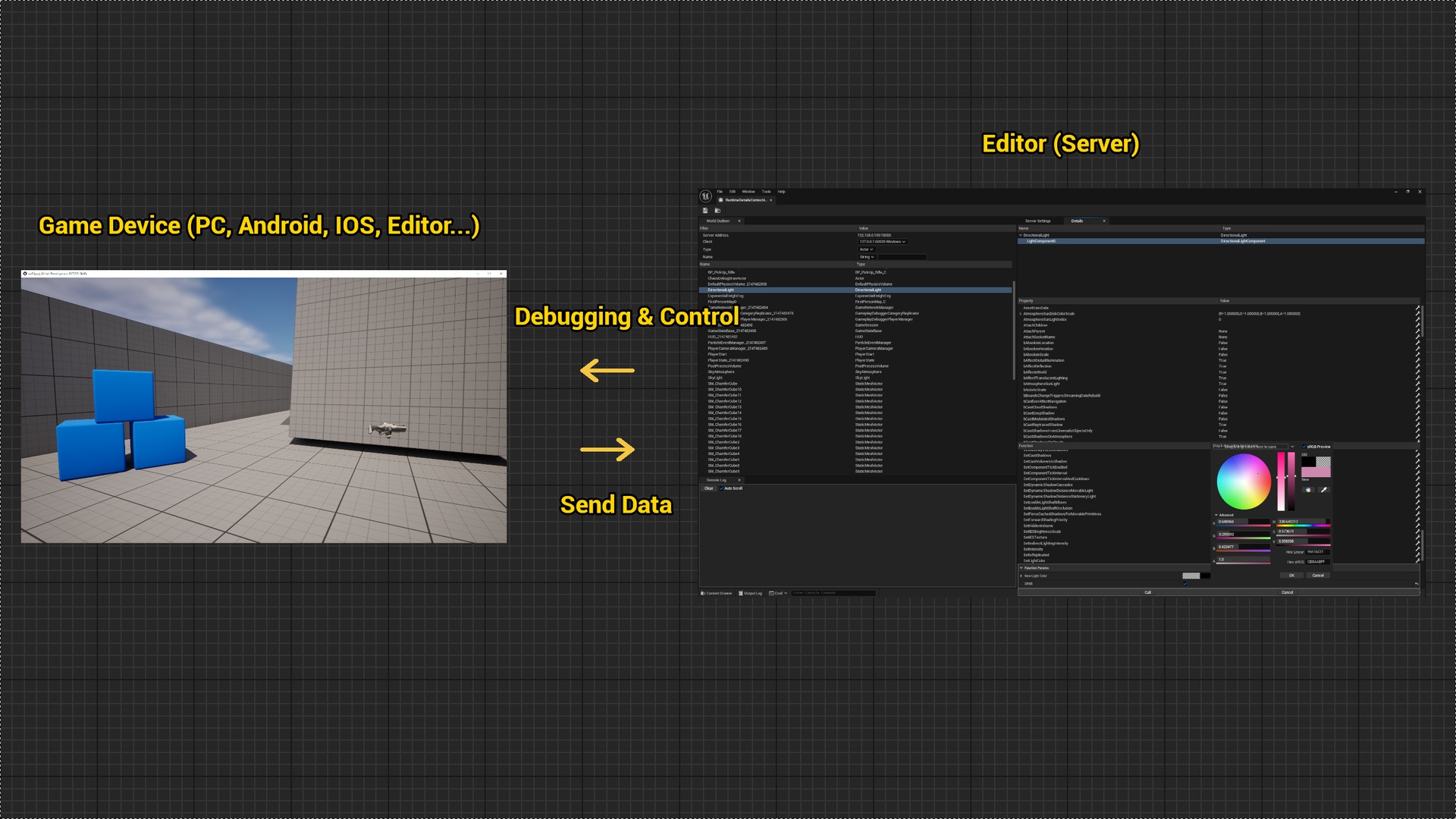
Runtime Details creates a live connection between your running game and the editor, letting you inspect, modify, control, and even hot-update any UObject, Blueprint, or UI layout in real time—even in packaged builds on PC, Android, iOS, or other Editor instances.
Stop recompiling code, repackaging builds, or placing debug actors just to test a single value. Runtime Details streams the internal state of your game directly to the editor, empowering you to manipulate UProperties, call UFunctions, visually debug UI, and push new assets dynamically. Iterate instantly—no interruptions, no repackaging.
The plugin has been validated on Windows, Android, and iOS. It should theoretically work on any platform with network support, including PS5, Xbox, and Switch.
Key Features
Live UObject & Function Control
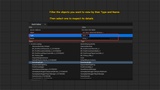
Dynamically discover and list all UObjects (including Blueprints) in your running game.
View and modify any UProperty value directly from the editor window.
Call any UFunction (including Blueprint Events) on-demand without stopping your game.
Integrated Live Log Capture to view remote execution results in the editor's Log tab.
Blueprint Remote Debugging (v1.1)
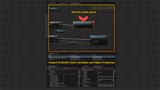
Set remote breakpoints on Blueprint nodes in packaged builds.
Step Execution live, inspecting stack variables and return values at every level.
Modify local variables or return values in real time, then continue execution to see changes propagate immediately.
Remote breakpoints appear in the node’s top-right corner, clearly distinguishing them from the editor’s built-in top-left breakpoint markers.
Nodes may also show editor breakpoints, which are independent and remain unaffected.
Latent Action nodes are currently not supported for remote debugging.
Remote Widget Reflector (v1.2)
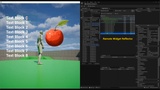
Inspect and debug UMG and Slate UI layouts remotely on any packaged build.
Target Picker: A unified tool to precisely pick UI widgets on the remote device directly from the editor, bypassing platform-specific input limitations.
Widget Tree Hierarchy: View the complete remote widget tree to identify layout, overlapping, or visibility issues.
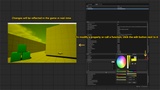
Live UI Tweaks: Modify properties (Color, Opacity, Switcher Index) and see layout changes instantly on the client.
Cook & Hot Update Assets (v1.3)
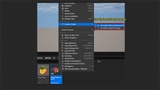
Remote Asset Patching: Skip the repackaging process entirely. Right-click any asset or folder in your Content Browser and push a Pak or IoStore update directly to your running remote client over the network.
Smart Cooking: Automatically detects the connected client's platform (Windows, Android, etc.) and cooks the assets accordingly.
Dependency Handling: Choose Hot Update (With Dependencies) to ensure all referenced files are included or Hot Update (Single Package) for rapid iteration.
Dynamic Mounting: Assets that haven't been loaded in memory will utilize the new version the next time they are accessed (Note: If the asset is currently active in memory, a client restart is required).
Live Material, Engine Shader & Asset Editing via Sandbox (v1.4)
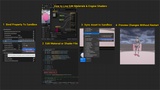
Real-Time Material, Engine Shader & Niagara Editing (No Restart Required): Edit active rendering assets directly in a running packaged game. Push updated materials, engine shaders, and Niagara systems to the client instantly without restarting, enabling a much faster iteration workflow for Technical Artists and developers.
Isolated Sandbox Architecture & Universal Binding: Safely hot-swap runtime assets through an isolated Sandbox directory without modifying original packaged assets. The dynamic reference remapping system provides a flexible foundation for extending live editing beyond materials to other Unreal assets and properties.
Perfect For:
Gameplay Programmers: Debug complex Blueprint logic and states in packaged builds without relying on print strings.
Tech Artists & Graphics Programmers: Rapidly iterate on widget layouts, materials, and complex shaders across target devices in real time without restarting the game.
QA & Optimization: Inspect live call stacks and memory footprints across the network.
Rapid Prototyping: Push modified assets directly to test devices to immediately verify visual or functional changes.
Usage:
1. Start the Server & Open the Window
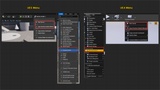
Navigate to the Runtime Details dropdown menu on the main Unreal Engine toolbar.
Click Start Server to begin listening for connections, or simply select Open Runtime Details Window (which will automatically start the server for you).
Note: Because the Editor Server now runs independently, closing the UI window will no longer terminate your connection. You must use Stop Server in the toolbar to shut it down completely.
2. Ensure Network Connectivity
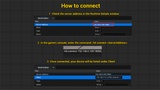
Make sure the game client and editor server are on the same LAN.
3. Start the Connection from Your Game
In your running game (either in a packaged build, the Editor, or a Play-In-Editor session), open the console command window and enter:
rtd.connect <YourServerIP:Port>
Example: rtd.connect 192.168.0.1:18000
You can find the correct IP and Port in the Runtime Details editor window, listed as the Server Address property.
4. Verify Successful Connection
Once the command is executed, check the Client list in the Runtime Details window. Your game device should appear there, indicating a successful connection.
(Optional) You can also type rtd.ui in the game's console to open a small client-side UI panel, which displays the current connection status. This step is not required for the plugin to function.
5. Inspect, Debug & Update
Once connected, you are ready to take full control of the running client:
Live Properties & UI: Use the Runtime Details window to modify UProperties, call UFunctions, or open the Widget Reflector to visually tweak remote UI layouts.
Blueprint Debugging: Set remote breakpoints to step through live execution and inspect stack variables.
Asset Hot Updates: Right-click any asset in the Editor's Content Browser, navigate to the RuntimeDetails menu, and select a Hot Update method to cook and push Pak or IoStore files directly to the client over the network.
Sandbox Live-Editing: Use the Sync Sandbox and Bind to Sandbox commands to dynamically test material and shader updates on currently active components without restarting the client.