Description
Unreal Editor Plugin: Comment Bubble Assist
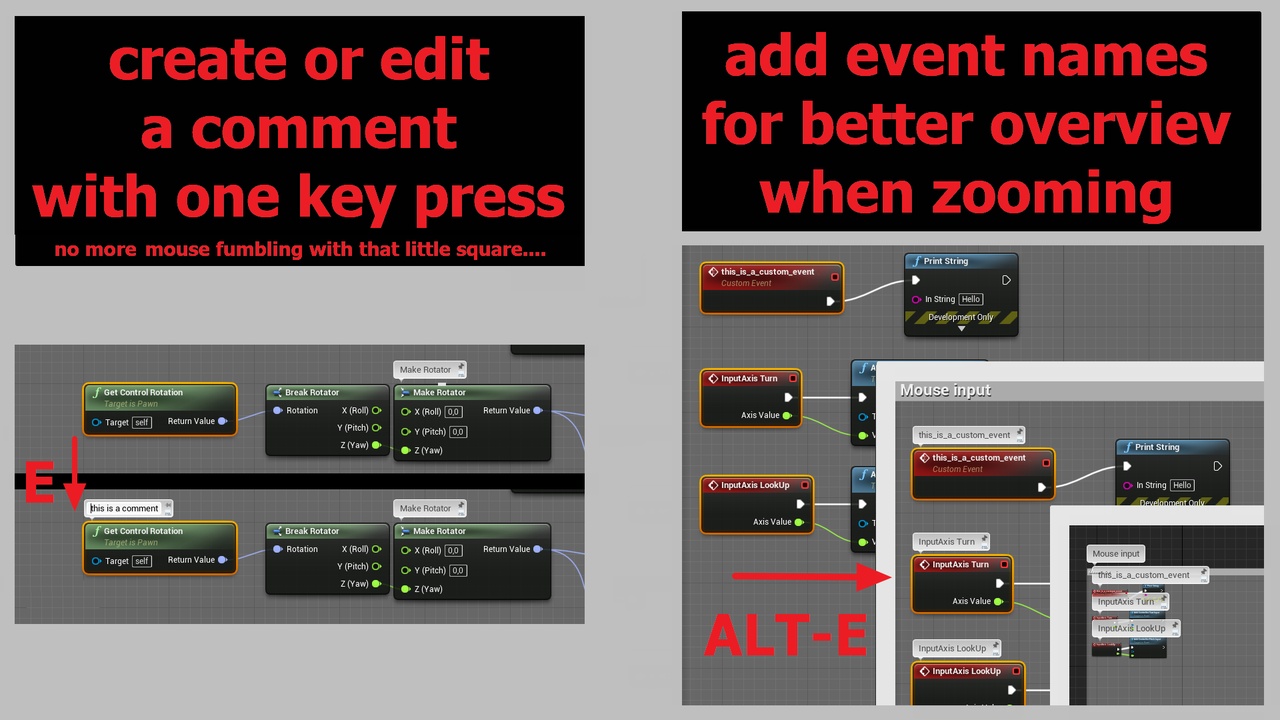
commenting without getting mouse arm RSI !This plugin allows you to use keyboard commands to edit Blueprint comment bubbles,
fill them with the node's title, pin / unpin the zoom lock, or remove the comment.
No more fumbling with the mouse, trying to hit those tiny buttons.
video: https://youtu.be/ngc-MZldvMw (shows v.1.1)
commands available:
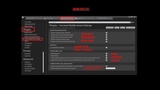
all shortcut keys may be changed in the UE4 Editor settings
E:
Edit the comment text
Simply select the command node, hit the E key, and start editing.
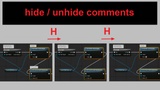
H:
Hide / unhide the comment text
toggle: If at least one comment of the selected nodes is visible, hide them.
If none of the selected is visible, unhide non-empty comments again.
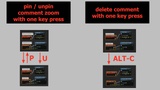
P:
Pin or unpin the bubble zoom
To control whether the bubble should zoom with the graph, or stay at a readable 1:1 size.
toggle: If the slected / all of the selected nodes are pinned, unpin them.
classic 'U' command for unpin still works.
ALT-C:
Clear the comment
Delete the comment text and hide the comment bubble.
Does not delete text from hidden comments.
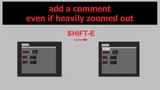
SHIFT-E:
Pin & Edit the comment text
like Edit, but also pins the zoom size. Useful to edit when heavily zoomed out
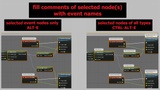
ALT-E / CTRL-ALT-E:
Fill the comment bubble with the node title and pin the size.
Useful for event nodes to still find them while zoomed out.
ALT-E only fills nodes of type 'event', but doesn't touch 'normal' nodes, even if selected.
Useful to only fill several event nodes, without having to avoid the 'normal' nodes when selecting.
CTRL-ALT-E fills all types of nodes.
Both commands don't touch nodes which already contain a comment.
UNDO:
Use the standard CTRL-Z undo command
Tip: use together with fpwong's BlueprintAssist to quickly move around between the nodes
using the ctrl-cursor keys, making retroactive commenting easy.