
描述
ONE KEYSTROKE. EVERYTHING IN YOUR PROJECT. RANKED.
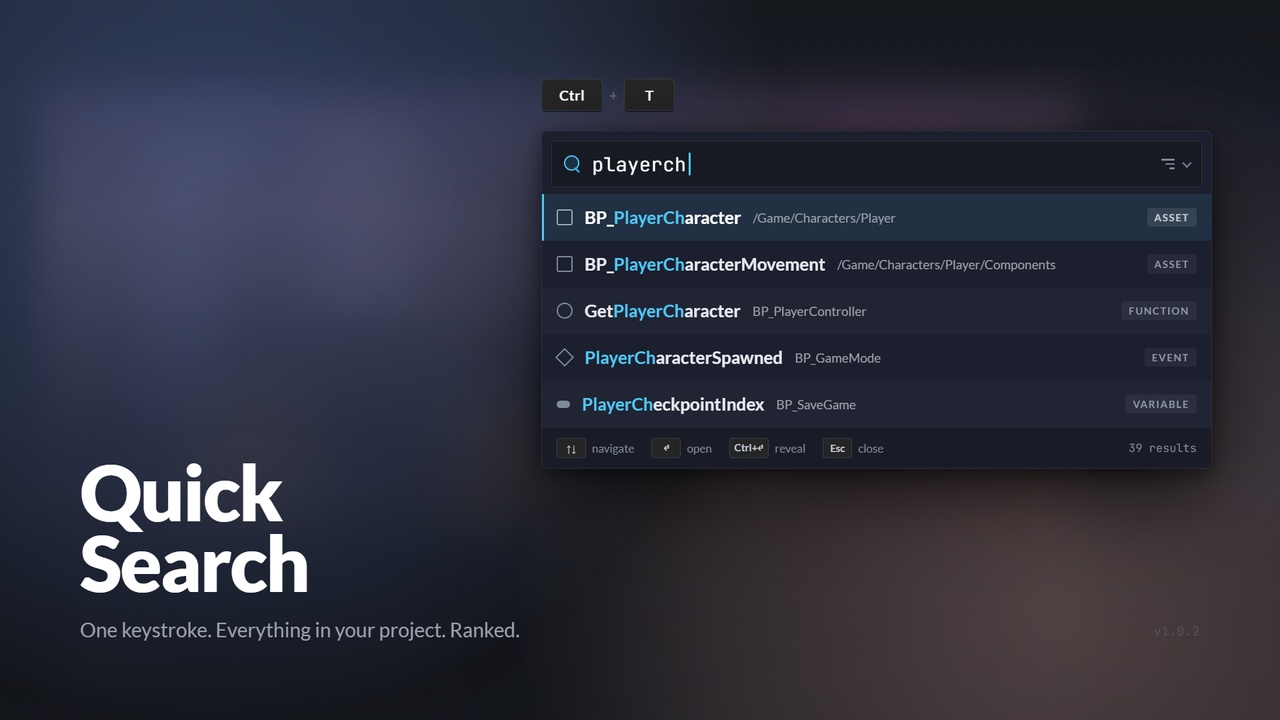
Quick Search brings "go to anything" to the Unreal Editor. Press Ctrl+T anywhere, including inside Blueprint editors and floating windows on a second monitor, type a few characters, and press Enter.
It finds assets, Blueprint functions, events, macros, variables, local variables, struct members, enum entries and comments across the entire project, ranks them together, and navigates to the exact graph, node or variable.
It works in Blueprint-only projects, and it never loads your Blueprints to index them.
WHAT YOU CAN FIND
- Assets - Blueprints, structs, enums, materials, animations, levels, anything. Straight from the Asset Registry, live.
- Functions, macros and event graphs, from Blueprint search data.
- Events, both custom and overridden, from Blueprint search data.
- Variables and function-local variables, from Blueprint search data.
- Comment boxes, node comments and tooltips, from Blueprint search data.
- Struct members and enum entries, loaded once in the background and then cached.
IT READS THE WAY PROGRAMMERS TYPE
- Type "playercharacter" and it finds PlayerCharacter. Exact.
- Type "playerch" and it finds PlayerCharacterMovement. Prefix.
- Type "pcm" and it finds PlayerCharacterMovement. Camel-hump initials.
- Type "pm" and it finds PlayerCharacterMovement. Initials with a gap.
- Type "movement" and it finds PlayerCharacterMovement. Start of an inner word.
- Type "ermove" and it finds PlayerCharacterMovement. Substring.
- Type "player character" and it finds BP_Character_Player_Base. Several terms, any order.
Every term has to match, but the order does not. Typing two half-remembered fragments is usually the fastest way to reach something.
FILTERS AND SCOPE
- a: restricts to assets
- f: restricts to functions, events and macros
- v: restricts to variables, struct members and enum entries
- c: restricts to comments
- /Game/Characters restricts to that content path
Combine them in any order. Typing "f: /Game/Weapons reload" searches only functions and events under /Game/Weapons.
By default only your project's content is searched. A filter button inside the search field adds engine or plugin content, and takes effect on the next keystroke, nothing is re-indexed.
KEYS
- Ctrl+T - open, or close if already open
- Up / Down, Page Up / Page Down - move the selection, and it wraps
- Enter - open the result
- Ctrl+Enter - reveal the owning asset in the Content Browser
- Esc - clear the text, then close
The shortcut is rebindable under Editor Preferences, Keyboard Shortcuts, Quick Search, alongside every other editor binding.
WHY IT IS DIFFERENT
The editor already has two search tools, and neither does this job. Ctrl+P matches asset names only, it cannot find a function. Find in Blueprints searches inside graphs, but it is slow, tree-shaped, blocking, and limited to Blueprints.
The engine also ships an experimental Asset Search plugin. It can only index assets that are already loaded, and its bulk-index path loads and re-saves your entire project.
Quick Search takes a different route. Every Blueprint already carries a searchable index of its own graphs inside its .uasset file, written on every save and held in memory by the Asset Registry.
Quick Search reads that. No loading, no re-saving, no stalling.
BUILT TO STAY OUT OF THE WAY
- About 6 MB of memory added at steady state. The database page cache is hard-capped at 4 MB, and peak transient memory during indexing is a fixed 8 MB regardless of project size.
- Indexing is metered by bytes in flight, not asset count. It measures its own game-thread cost each tick and backs off when it starts to show.
- It stops entirely during Play In Editor, package saves and slow tasks.
- The index lives on disk in Saved/QuickSearch/ - roughly 15 to 30 MB for a 10,000-asset project. The work happens once and survives restarts.
- Assets are searchable before indexing finishes, and remain searchable if the index is unavailable at all.
- Source-control friendly. Staleness is keyed on content, not file timestamps, so switching branches
does not trigger a full re-index of unchanged assets.
RANKING
Assets always rank above symbols. That is a guarantee of the scoring model, not a tendency, and it is proven exhaustively by an automated test. Among symbols, relevance wins: a strong event match outranks a weak function match. Beyond that, results are ordered by match quality, how early and how tightly the query matched, how recently you navigated there, and how short the name and path are.
Every weight is adjustable under Editor Preferences, Plugins, Quick Search.
WHAT IT DELIBERATELY DOES NOT DO
Quick Search is a navigation tool. It indexes declarations and comments, the things you go to, and leaves graph node titles and pin values to Find in Blueprints. Indexing every node would grow the index roughly a hundredfold and push your assets down the results.
Use Quick Search to reach the right Blueprint, and Find in Blueprints to search within it.
REQUIREMENTS
- Unreal Engine 5.5
- Windows, Mac or Linux
- Editor-only. Nothing ships in a packaged build.
- Uses the engine's SQLite plugin, which ships with Unreal and is enabled automatically. There is
nothing to download.