Descrição
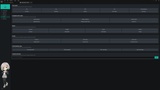
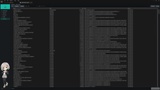
Optimization Toolkit brings level analysis, guided optimization, safe auto-fixes, profiling tools, memory insights, and project cleanup into one dockable Unreal Editor panel.
Scan your loaded levels, identify real performance and content issues, understand why they matter, and apply supported fixes without jumping between multiple editor windows or memorizing console commands.
🔍 Analyze Your Levels
Run a severity-based analysis across the persistent level and its loaded sub-levels.
Findings are grouped by problem type and marked as Critical, Major, or Minor, with clear explanations and recommended next steps.
Checks include:
Excessive triangle counts
Missing LODs
Nanite candidates
Nanite enabled on low-poly meshes
Nanite meshes using incompatible materials
Complex collision
Empty Static Mesh Actors
Oversized and non-power-of-two textures
Missing mipmaps
Incorrect normal map compression
Incorrect sRGB settings for data textures
Excessive material slots
Duplicate or empty material assignments
Translucent and two-sided material costs
Texture sampler and shader instruction budgets
Excessive movable lights per level
High lightmap resolutions
Repeated actors suitable for instancing
Blueprint tick usage
Large Blueprint dependency chains
Expensive project rendering settings
Texture Streaming disabled in texture-heavy projects
Analysis thresholds can be configured directly from the Dashboard or through Project Settings.
🛠️ Apply Supported Fixes
Many findings include an additional automatic fix action.
Available fixes include:
Enable or disable Nanite
Generate Static Mesh LODs
Generate simple collision
Delete empty Static Mesh Actors
Convert compatible repeated actors to HISM instances
Correct normal map compression
Disable sRGB for data textures
Enable Texture Streaming
Review and adjust light mobility
Supported editor changes use Unreal transactions where possible, allowing them to be reverted through Undo/Redo. Findings are automatically refreshed after fixes are applied.
You can also select multiple affected assets or actors and apply supported fixes as a batch.
🎯 Scope-Aware Navigation
Every finding takes you to the object that actually owns the problem:
Meshes, materials, textures, and Blueprints open in the Content Browser
Actor problems focus the relevant actor in the level
Project-wide problems open the appropriate Project Settings page
No more navigating to an actor when the real problem belongs to its mesh asset.
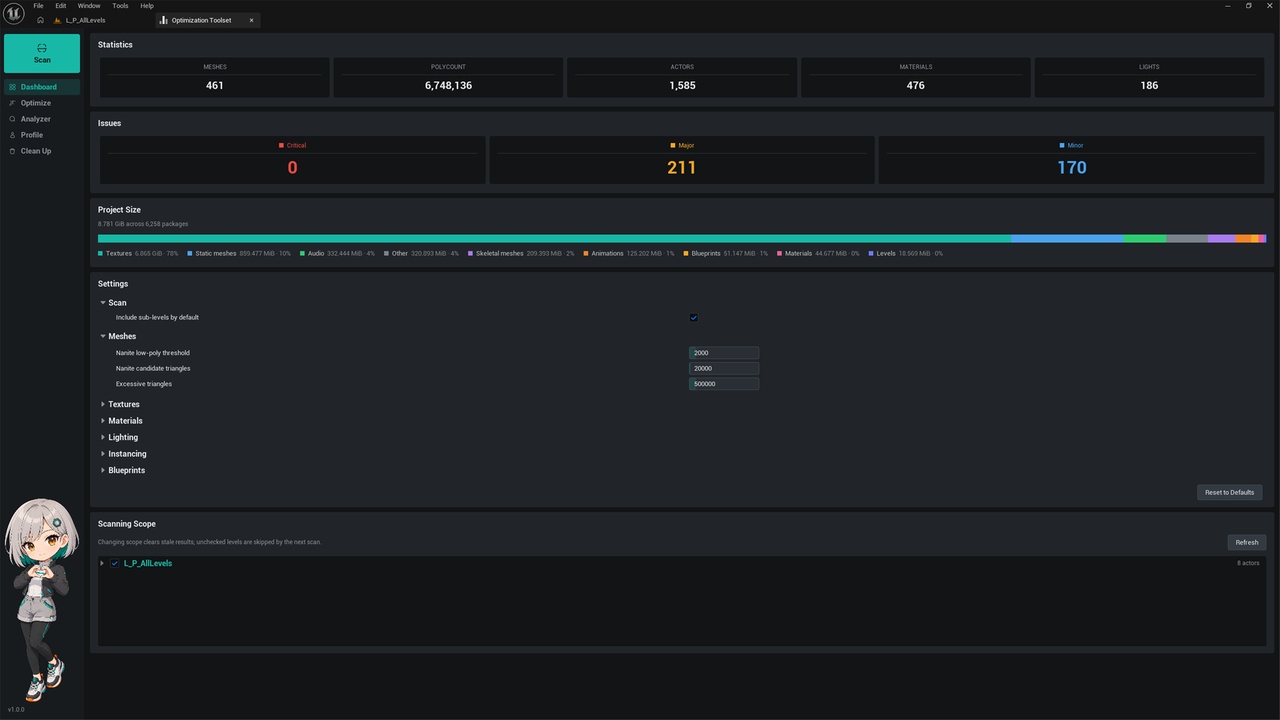
📊 Dashboard
Get a quick overview of the current level and project:
Actor count
Static Mesh count
LOD0 triangle count
Material count
Light count
Findings by severity
Project disk-size breakdown by asset category
Changes compared with the previous scan
Per-level inclusion toggles
Configurable analysis thresholds
Loaded sub-levels can be included or excluded individually. Excluded levels are ignored by the next analysis.
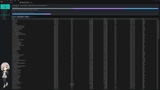
🧠 Memory Analyzer
Inspect the memory used by currently loaded content:
Textures
Render Targets
Static Meshes
GPU and resource-size totals
Sortable per-asset tables
Texture Streaming metrics are handled safely even when streaming is disabled or its manager is unavailable.
📈 Profiling Tools
Launch commonly used profiling stacks and viewport visualizers from one panel.
Included tools cover:
FPS, frame time, game thread, render thread, and GPU timing
Scene rendering and RHI statistics
Init Views and streaming statistics
GPU profiling
Light Complexity
Shader Complexity
Quad Overdraw
Lightmap Density
Stationary Light Overlap
Nanite visualizers
Lumen visualizers
Virtual Shadow Map visualizers
Custom console commands
Profiling actions are applied directly to the active editor viewport where required.
🧹 Project Clean Up
Scan project content under /Game and review:
Unreferenced assets
Possible duplicate assets across folders
Disk size and asset type
Redirectors
Dirty packages
Possible duplicates are identified conservatively using matching asset name, class, and disk size. They are presented for review and are not claimed to be byte-identical.
Asset deletion uses Unreal Engine’s own confirmation dialog, giving you a final opportunity to inspect references before anything is removed.
🚀 Optimization Toolset is useful for:
Solo developers who need fast, actionable optimization feedback
Technical artists reviewing content budgets
Level designers checking loaded scenes
Teams preparing projects for milestones
Studios establishing consistent optimization rules
✅ Optimize with Confidence
Optimization Toolset does not promise a one-click “optimize everything” result.
It provides focused analysis, clear context, reviewed automation, and direct access to the Unreal tools needed to make informed optimization decisions.