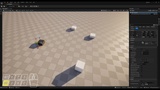
Descripción
Doupi Design brings you: Absolute Snap
Absolute Snap gives you Transform rounding - no more X: 99.999 Y: 99.999 Z: 99.999s
ONLY 100s all the way, baby!
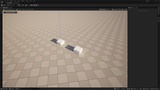
And even more - An additional mode - Referential snap will help you keep those locally rotated fellas nice and toasty, snapped together!
Features:
Adds two new grid-snapping modes to the Level Editor viewport (Absolute and Referential) alongside Unreal's native grid snap
Absolute mode: snaps actor/component location to the nearest world-space grid point (not relative/incremental)
Referential mode: snaps to a grid defined by a chosen reference actor's location and rotation, with a live in-viewport axis visualization
Customize if snapping works for all gizmos or only preffered ones (customizable in Plugin's setting)
Customizable hotkeys (cycle mode, set reference, jump to a specific mode) via the standard Editor Preferences keybinding UI
Always-on viewport HUD label showing the active mode
Included Examples: NO levels, demos or examples that might be visible in the images and videos section are included with the Plugin
How It Works:
Absolute Snap adds a few options in the GridSize dropdown menu.
- Default - uses Unreal's default snapping options
- Absolute rounds to the nearest world-space grid point.
- Referential rounds to a grid defined by a reference object's location and rotation, converting into that object's local space, snapping, and converting back.
It also allows you to choose which Transform values it should snap (Location, Rotation or Scale)
Usage:
1. Open the viewport toolbar's grid-snapping dropdown (the grid-size button, next to the native grid snap toggle).
2. Under the "Absolute Snap" section, choose Default, Absolute, or Referential.
3. For Referential mode: select an object in the level, then either pick Referential from the dropdown
4. Use the three icon toggles at the bottom of the dropdown to choose which of Location, Rotation, and Scale get rounded to the grid while dragging.
5. Drag actors as normal — the active mode's rounding is applied live during the transform, with full Undo/Redo support as a single step per drag.
Keyboard Shortcuts:
Unbounded by default, set them up in → Keyboard Shortcuts → Absolute Snap.
Settings:
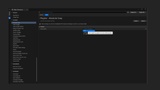
Most of the plugin's state (active mode, reference object, per-axis toggles) is driven entirely from the viewport dropdown and hotkeys above, and persists automatically across editor restarts — there's nothing to configure for it. One setting lives in Editor Preferences → Plugins → Absolute Snap:
- Snap Coupling — controls how the Location/Rotation/Scale toggles relate to which gizmo is actually being dragged.
- None (default): each toggle only applies to its own matching gizmo.
- Location and Rotation: dragging either one snaps both together, if both are toggled on.
- All Toggled: any drag snaps every toggled-on channel, regardless of which gizmo is active.
Installation:
1. Copy the `AbsoluteSnap` folder into your project's `Plugins` directory.
2. Open the project; if prompted to rebuild modules, allow it.
3. Confirm the plugin is enabled: Edit → Plugins → search "Absolute Snap".
4. Requires Unreal Engine 5.8 (Windows or Mac editor). Editor-only — has no effect on packaged/runtime builds and can be removed at any time without side effects.