

Descrizione
The easy, safe way to change Unreal's tone mapper on UE 5.0–5.8. Pick AgX, Khronos PBR Neutral or four other proven curves from the toolbar, and keep your colour grading working.
What it does
Unreal renders your scene with a far wider range of brightness than a screen can show. A tone mapper squeezes that range down into the final image. Unreal's default, Filmic, handles very bright, saturated colour in a particular way: a bright red light can drift toward orange, and strong colours wash out toward white. That's a big part of what people often call "the Unreal look".
Easy Tonemapper lets you swap Filmic for a different tone mapper (AgX, Khronos PBR Neutral or four others) from the toolbar, while your usual Post Process Volume colour grading keeps working.
Detailed Technical Documentation
Is it for you?
Likely a good fit if:
Your project is on UE 5.0 - 5.7, where Unreal has no built-in alternative to Filmic.
Your scenes have strong, colourful light (neon, fire, magic, sci-fi glow, stylised lighting). This is where the difference is clearly visible.
You make games or other real-time projects, where what Unreal renders is the final image.
You want to match the look of Blender's AgX.
You do product or archviz work where colours need to stay true to the real object (Khronos PBR Neutral).
Probably not needed if:
Your scenes use natural light and already look right to you under Filmic (the difference when applying other tonemappers can be subtle).
You render cinematics out of Unreal and grade them afterwards in DaVinci Resolve or Nuke.
You're on UE 5.8 and happy with Epic's free Standard ACES option (Post Process Volume → Film → Method). Try that first!
You need HDR output. It isn't supported yet, but it's planned for an upcoming update (see Roadmap)
Your studio doesn't allow changes to the engine installation (see Before you buy)
Not sure? Put a bright red or blue light in one of your scenes. If the way Filmic renders it doesn't bother you, you probably don't need this plugin.
What you get
Your colour grading keeps working: white balance, saturation, contrast, gamma, gain and offset, and your Color Grading LUT all still apply, and so does the rest of Unreal's image pipeline: exposure, bloom, vignette, film grain and chromatic aberration. Only the tone curve changes. (Blue Correction, an ACES-specific adjustment, is switched off by default; you can turn it back on.)
6 tone mappers: AgX (with Neutral, Golden and Punchy looks), Reinhard, Uncharted 2, GT (Uchimura), Khronos PBR Neutral and Lottes; with Unreal's default always one click away.
Works out of the box: pick a tone mapper and you're done. No Tone Curve Amount changes or other setup.
Safe by design: the engine change is temporary. It's undone when you close the editor, or at the next launch after a crash. Engine Default leaves the
engine exactly as installed, and if the engine file isn't exactly what the plugin expects, it changes nothing.
Simple to use: a toolbar menu, a Tools menu entry, or Project Settings.
Reversible: one click restores Unreal's default.
Quick look development: the Film sliders you already know (Slope, Toe, Shoulder, Black clip, White clip) adjust the chosen tone mapper live, with no shader recompile.
Ships with your game: the look is compiled into your packaged build, with no extra cost per pixel.
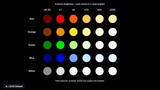
A test chart map: glowing spheres from normal to very bright, with exposure fixed and bloom off, so you can see what each tone mapper does to bright colour.
Works with Movie Render Queue: Render (Local) and Render (Remote) both use your tone mapper.
Works on every UE5 version from 5.0 to 5.8: each tone mapper tested on all nine.
Can't I do this myself?
You can try, but each common route costs you something:
A post-process material set to Replacing the Tonemapper, or a Scene View Extension (UE 5.6 and later): these replace Unreal's whole tone mapping step. Unreal then skips its colour grading, so your Post Process Volume grading and Color Grading LUT stop applying, and exposure, bloom, vignette, film grain and chromatic aberration all become your job to rebuild.
A Color Grading LUT: it's applied after Filmic, so it can't undo what Filmic has already done to bright colour.
Editing the engine shader by hand: it works, but the change stays in place for every project on that engine version until you undo it.
Easy Tonemapper changes only the curve inside Unreal's own colour grading, so everything else keeps working, and it undoes its change when you close the editor.
Before you buy
It changes one engine file while the editor is open. Unreal offers no way for a plugin to change its tone mapper and keep its own colour grading without editing this file. The original is backed up first and restored when you close the editor, or at the next launch after a crash. Your tone mapper choice stays saved in your project.
While that editor is open, other projects on the same engine version also use its tone mapper. Other engine versions aren't affected.
Your engine install must be writable. Standard Epic Games Launcher installs are. If yours isn't, the plugin tells you and changes nothing.
Existing scenes will look different. Scenes tuned under Filmic may need some re-grading after switching (that's true of any tone mapper change).
SDR only for now (HDR is on the Roadmap).
Windows only. Tested with Epic Games Launcher engine installs; engines built from source haven't been tested.
Roadmap
Planned updates (none of these are included in the current version):
HDR output.
Before/after images: save your viewport side by side, Unreal's default next to your tone mapper.
Match Blender out of the box: an AgX option that matches Blender's default look, so scenes look the same in Blender and Unreal.
Support
You can join the official Discord server for product support and discussion here: