Descrição
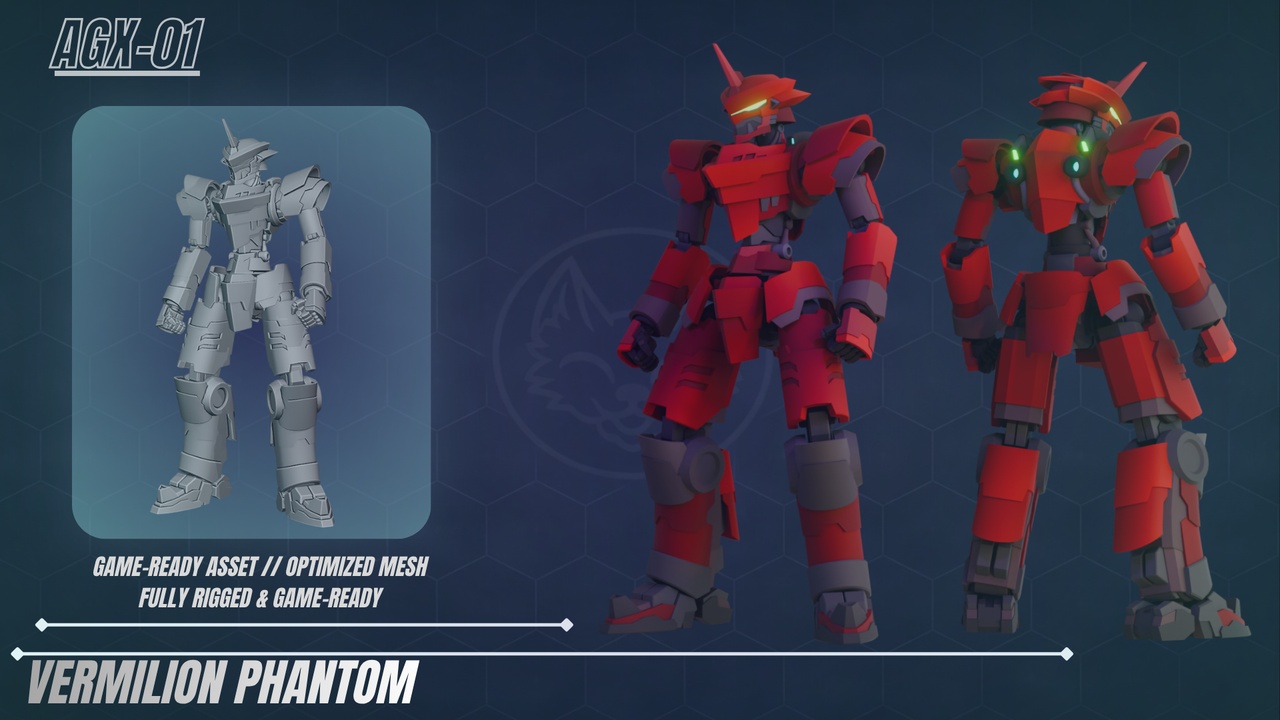
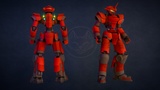
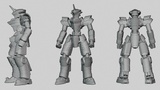
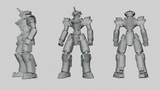
Vermilion Phantom is a mid-poly, hard-surface mecha model engineered specifically for modern game engines like Unreal Engine, Unity, and Godot.
Built with an ultra-efficient Gradient Palette Workflow, this asset delivers stunning stylized visuals while keeping texture memory footprints near zero.
- Key Features & Technical HighlightsGame-Ready & Rigged: Comes with a clean, fully functional armature/skeleton structure ready for custom posing, rigging integration, or animation pipelines.
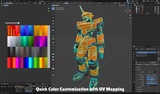
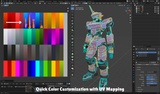
Instant Color Customization (Overlapping UVs): Built using an overlapping UV mapping technique paired with a single gradient palette texture. Effortlessly re-color the entire mecha in seconds by shifting UV coordinates or swapping palettes.
3-Slot Material Organization: Cleanly divided material slots (M_Mecha_MainArmor, M_Mechanical_Dark, and M_Mecha_Emission) offer granular shader control for glows, metallic finishes, or custom game-engine shaders.
Highly Optimized Topology: Balanced mid-poly mesh designed to run smoothly in real-time environments without sacrificing hard-surface detail.
Model Name: Vermilion Phantom
Triangle Count: 68,422 Triangles
Polygon / Face Count: 34,792 Faces
Textures: 1xGradient Color Palette (T_Mecha_ColorPalette.png - 512x512 resolution)
Material Slots: 3 Slots (M_Mecha_MainArmor, M_Mechanical_Dark, M_Mecha_Emission)
Rigging: Fully Rigged (Armature included)
Available File Formats: .blend (Native Blender File), .fbx (Engine-Ready Exchange Format)
Vermilion_Phantom.blend: Complete source file with rig, materials, lighting setup, and preview scene.
Vermilion_Phantom.fbx: Standardized exported FBX mesh with skeleton for seamless drag-and-drop import into Unreal Engine / Unity.
T_Mecha_ColorPalette.png: Lightweight 512x512 gradient palette texture map.
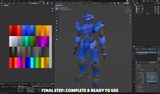
Guides/ Folder: Step-by-step visual documentation for fast UV color customization.
Method 1: Blender Setup (Recommended)
Open .blend file and select the Mecha mesh in Edit Mode.
Choose the target Material Slot (M_Mecha_MainArmor, M_Mechanical_Dark, or M_Mecha_Emission).
Select corresponding UV islands in the UV Editor and press G (Grab) to slide them to a different color column on T_Mecha_ColorPalette.
Method 2: In-Engine UV Offset & Palette Swapping (Unreal / Unity / Godot)
UV Offset: Adjust the UV Tiling/Offset parameters inside your Material Instance / Shader Graph to shift base coordinates onto different color bands dynamically.
Texture Swapping: Swap out T_Mecha_ColorPalette.png with your own custom gradient palette map using the same column layout to instantly match your game’s color scheme.
Creator: IGANIX_ART
Commercial & Personal License: Royalty-Free license for use in commercial games, personal games, animations, renders, and interactive media.
Usage Rights: Permitted to modify, re-texture, adapt, or integrate the model into any game engine project.
Restrictions: Reselling, redistributing, or re-uploading the source files, raw model, or modified mesh as a standalone asset on any marketplace or file-sharing site is strictly prohibited.
Attribution: Credit to IGANIX_ART is welcomed but not mandatory.