
















Descrizione
Hello!
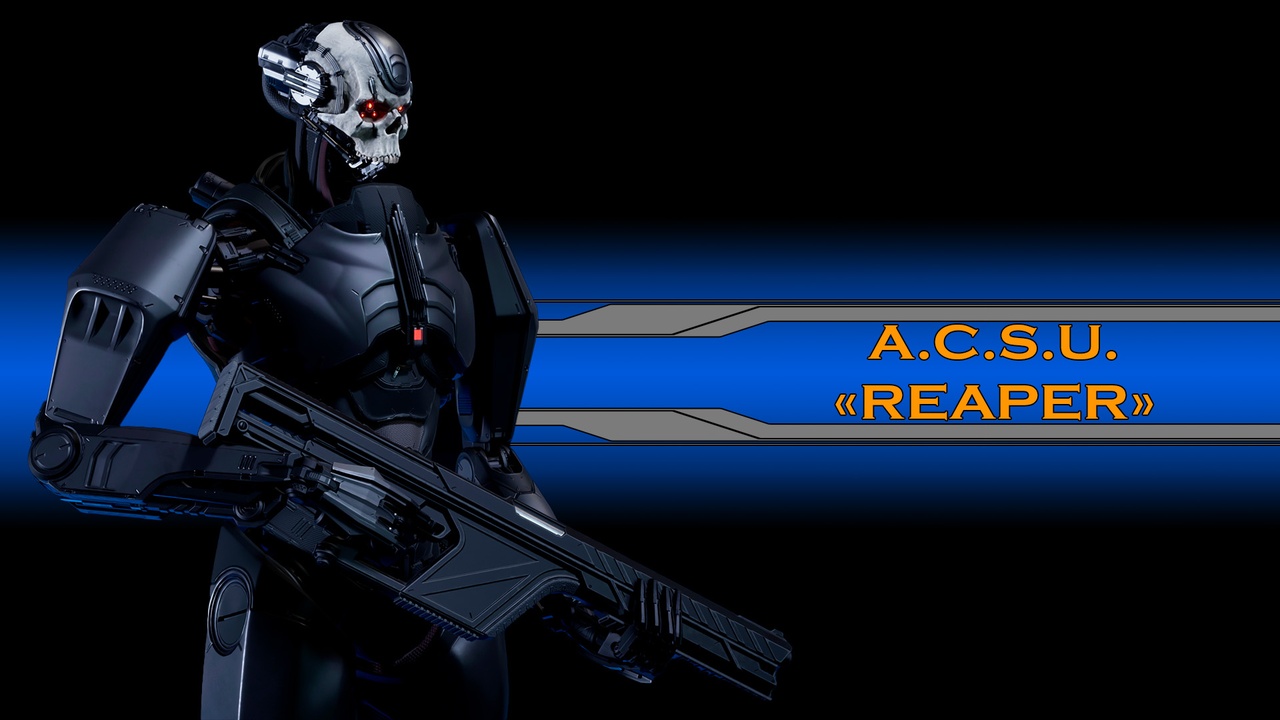
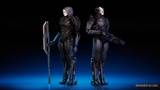
A. C. S. U.- This abbreviation stands for: "Autonomous combat support unit". This is a General type of robotic soldier created for service in urban environments, for example, the police or special forces, and in conditions of conducting full-fledged combat operations. A. C. S. U. is highly reliable and the built-in artificial intelligence allows you to perform combat tasks in offline mode.
Reaper - is located in a separate group of combat androids. When creating this model, attention was paid not only to physical characteristics, but also to the appearance. Reapers are a set of deadly combat qualities and psychological pressure on the enemy. When appearing on the battlefield, they are able to inspire horror and carry destruction collecting their dark harvest. It is also worth noting that there are rumors that real human ones are used in the production of reapers, but the corporation does not comment on this information.
The model includes:
Color customization;
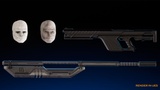
5 pieces of accessories including: cloak, hood, shoulder pads, chains on legs, masks;
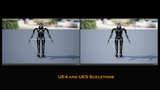
2 types of skeleton: UE 4 and UE 5 versions (Also added an additional bone: sword1_l, sword1_r, sword2_r, sword2_l);
Riffle;
Sword;
Vertex count: 235168 - 309937;
Texture resolutions: 4096x4096, 512x512;
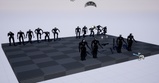
Included only demo animations;
Turning the scanner on and off:
To turn on or off the scanner beam display during animation playback, you need to open the animation in which you need to display the scanner beam, select the frame in which it will be turned on and on the "Notifies" track, right-click and select "Add notifies" > "BP_ACSU_Bobby_Scanner", then select the frame in which the scanner beam should be turned off and also right-click and select "Add notifies" > "BP_ACSU_Bobby_Scanner". As a result, you will have two Notifies on the animation track - one at the moment the scanner is turned on, the other at the moment it is turned off.
IMPORTANT for those mesh variants where the scanner will be turned on in the material slot "Scanner_Material" you need to select the Material Instance "MI_ACSU_Bobby_Scanner_Inst_Scanner_On", for all other variants where there is no need to turn on the display of the scanner beam you need to select "MI_ACSU_Bobby_Scanner_Inst_Scanner_Off"