

Description
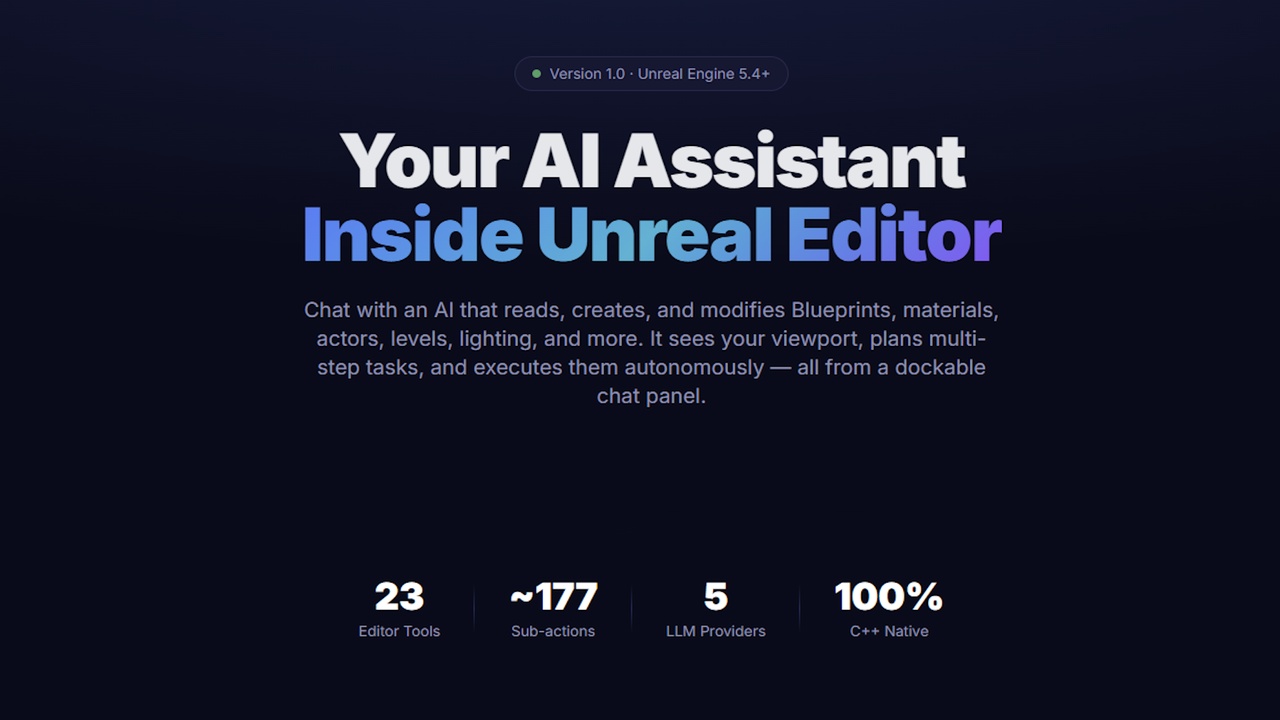
Your AI-powered development assistant — right inside the Unreal Editor.
Transform your Unreal Engine workflow with an AI assistant that doesn't just write code—it operates the editor. From authoring complex UMG widgets to wiring Blueprint event graphs, Unreal AI Copilot executes multi-step tasks directly inside your project via natural language.
Stop clicking, start commanding.
Version: 1.5.1 | Engine: Unreal Engine 5.5+ | Platforms: Windows 64-bit (Mac/Linux supported)
Setup tutorial video: Unreal AI Copilot Setup Tutorial
More info and guides at Unreal AI Copilot homepage
🚀 Core Capabilities
Blueprint & UMG Authoring: Create and modify Blueprints, C++ classes, and Widget Blueprints with full hierarchy and animation support.
Visual Awareness: Send viewport screenshots for the AI to identify lighting issues, placement errors, or scene composition.
25+ Integrated Tools: 200+ specialized operations covering Materials, Splines, Procedural Geometry, Lighting, and Level Design.
Smart Execution: Features an optional Plan → Execute workflow where the AI analyzes your project, builds a task list, and carries it out autonomously.
Python Integration: Execute arbitrary scripts with a built-in API documentation lookup tool.
🛠️Requirements
Unreal Engine 5.5 or later
An API key for at least one LLM provider (or a running local model server)
Windows 64-bit (Mac and Linux are supported but less tested)
Quick Start:
1. Install the Plugin
Install from the Fab Marketplace. The plugin appears at Plugins/UnrealAICopilot/ and is enabled by default.
2. Authenticate:
Set your API key (OpenAI, Anthropic, or OpenRouter) as a persistent Environment Variable (e.g., setx OPENAI_API_KEY "sk-...") and restart the editor.
3. Open the Chat Panel
Menu: Tools → AI Copilot
Toolbar: Click the AI Copilot button in the main editor toolbar
4. Start Chatting
Type a message and press Enter. The AI responds in real-time.
Configuration
All settings are accessible via Project Settings → Plugins → AI Copilot.
API Key Security
API keys are never written to project config files. They are read at runtime from the environment variable specified in settings. This prevents accidental commits to source control.
Usage Guide
Basic Chat
Open the chat panel (Tools → AI Copilot, or the toolbar button).
Type a message and press Enter (Shift+Enter for newline).
The AI responds in real-time with streaming text.
Click Clear to reset the conversation.
Click Cancel to abort an in-flight request.
Pinned Assets
Right-click any asset in the Content Browser and select "Add to AI Context". Pinned assets appear as chips above the chat input, giving the AI persistent awareness of the assets you're working with.
Viewport Screenshots
If Auto Include Viewport is enabled, a screenshot is attached to every message automatically. Otherwise, the AI captures the viewport on demand when it needs visual context.
Requires a vision-capable model (e.g., GPT-4o, Claude Sonnet 4).
Conversation History
Click the history toggle button to open the side panel. Load or delete saved conversations. History is stored locally in Saved/AICopilot/Conversations/.