설명
Overview
Getting around a big level in the Unreal editor usually means a lot of fly-camera wrangling. FlyTo turns that into a single gesture.
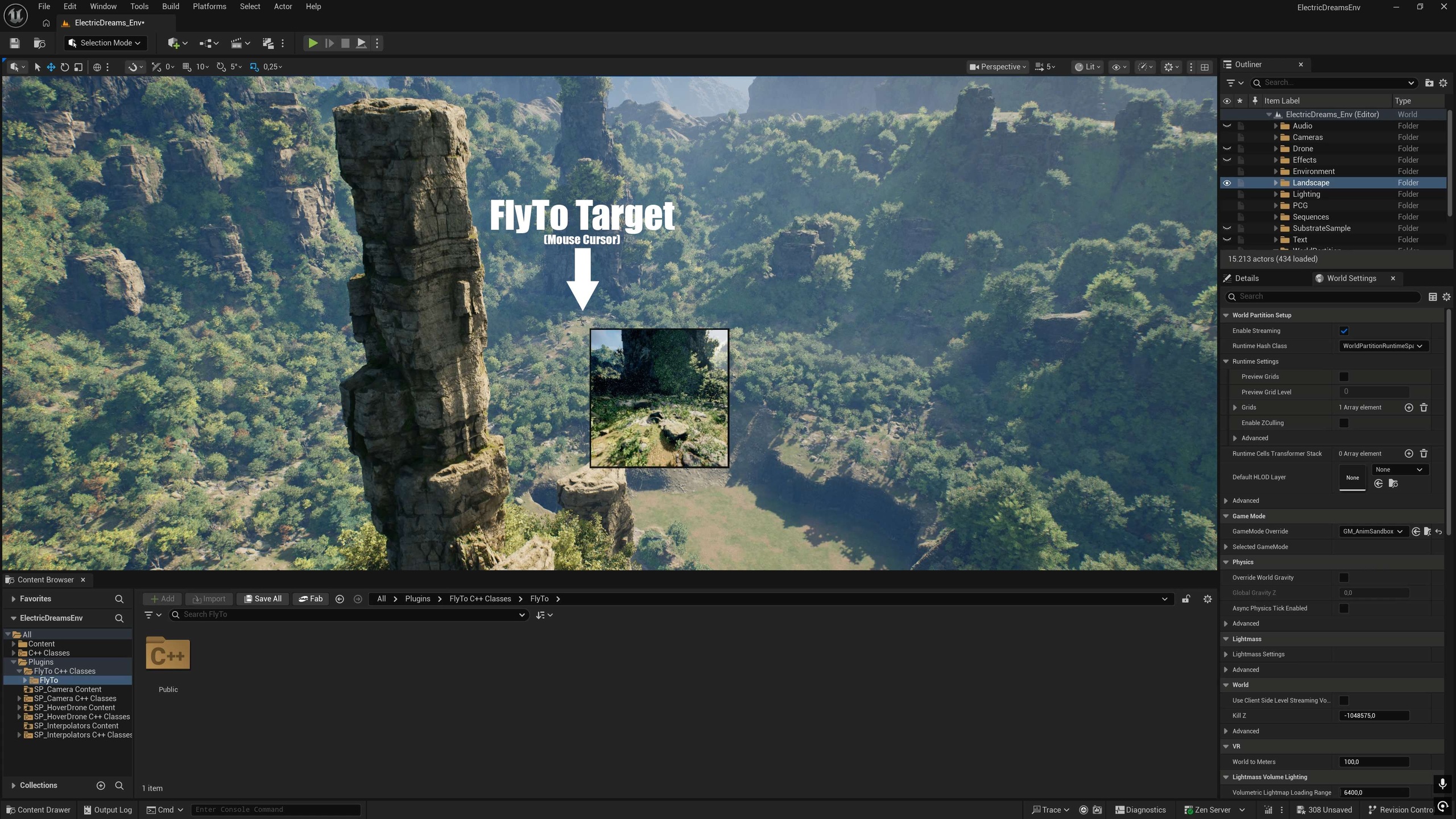
Hold a shortcut and the viewport pulls back to an overview. Move the mouse to aim at any point in your scene — a live thumbnail beside the cursor shows what the camera will see when it arrives. Release, and the view eases smoothly to that spot. Right-click to cancel and snap back to where you started.
Here is a tutorial video: https://www.youtube.com/watch?v=wQibNBzIJTM
FlyTo was built with large levels and landscapes in mind: the overview and the landing automatically stay above the terrain, so you can always aim at the ground, even on steep hills.
Customize the preset distances, shortcuts, and speeds to fit your workflow. And because it's editor-only and non-destructive, you can fly around your levels without worrying about breaking anything or leaving a footprint in your packaged game.
Highlights
Live destination preview — a real scene-capture thumbnail of where you'll land, following your cursor as you aim.
Three distance presets — Close, Medium, and Far, each on its own shortcut, for quick local hops or big-map traversal.
Landscape-aware — overview and landing stay above the terrain so aiming never breaks on hilly ground.
Fully configurable — rebind every shortcut and tune zoom distances, overview tilt, and separate zoom-out / zoom-in speeds.
Non-destructive & editor-only — moves only the editor view; never touches your actors, and ships nothing in a packaged game.
Zero setup — works the moment it's enabled; all settings live in Editor Preferences.
How it works
1. Hold a preset shortcut (default Shift+1 / Shift+2 / Shift+3).
2. The viewport zooms out to an overview — aim with the mouse and watch the live preview.
3. Release to fly to the target. Right-click cancels.
Everything (shortcuts, distances, tilt, speeds) is editable under Editor Preferences → Plugins → FlyTo.
Installation
FlyTo is a C++ code plugin, so the Epic Games Launcher installs it to the engine. There is no "Install to Project" for code plugins — that option is for content packs.
Via the launcher (automatic)
In the Epic Games Launcher, open Library → Fab Library, find FlyTo, click Install to Engine, and pick your engine version. Then open your project and enable FlyTo under Edit → Plugins. Installing to "5.7" covers every 5.7.x hotfix (5.7.0, 5.7.1, …). If the version you want isn't offered, click Refresh Fab items and restart the launcher.
You can find the installed plugin at e. g. `.\Epic Games\UE_5.7\Engine\Plugins\Marketplace`
Into a single project (manual)
Copy the `FlyTo` folder to the Plugins folder, i.e. `YourProject/Plugins/FlyTo/`, create the `Plugins` folder if needed. Then open your project and enable FlyTo under Edit → Plugins. If you already installed to the engine, you can copy it from `<Engine>/Engine/Plugins/FlyTo`.
Documentation
Documentation is available offline at your installation location, e.g. `.\Epic Games\UE_5.7\Engine\Plugins\Marketplace\FlyTo<id>\Documentation.md`