Descrição
A UE5 Editor plugin that snaps one actor's transform to another — with per-axis control over translation, rotation, and scale.
Features
- Actor-to-actor snapping with full undo/redo support
- Per-channel masking — choose exactly which X/Y/Z axes to snap for each transform component
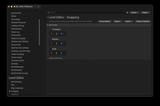
- Inline options dialog — hold Alt while snapping to adjust options on the fly before confirming
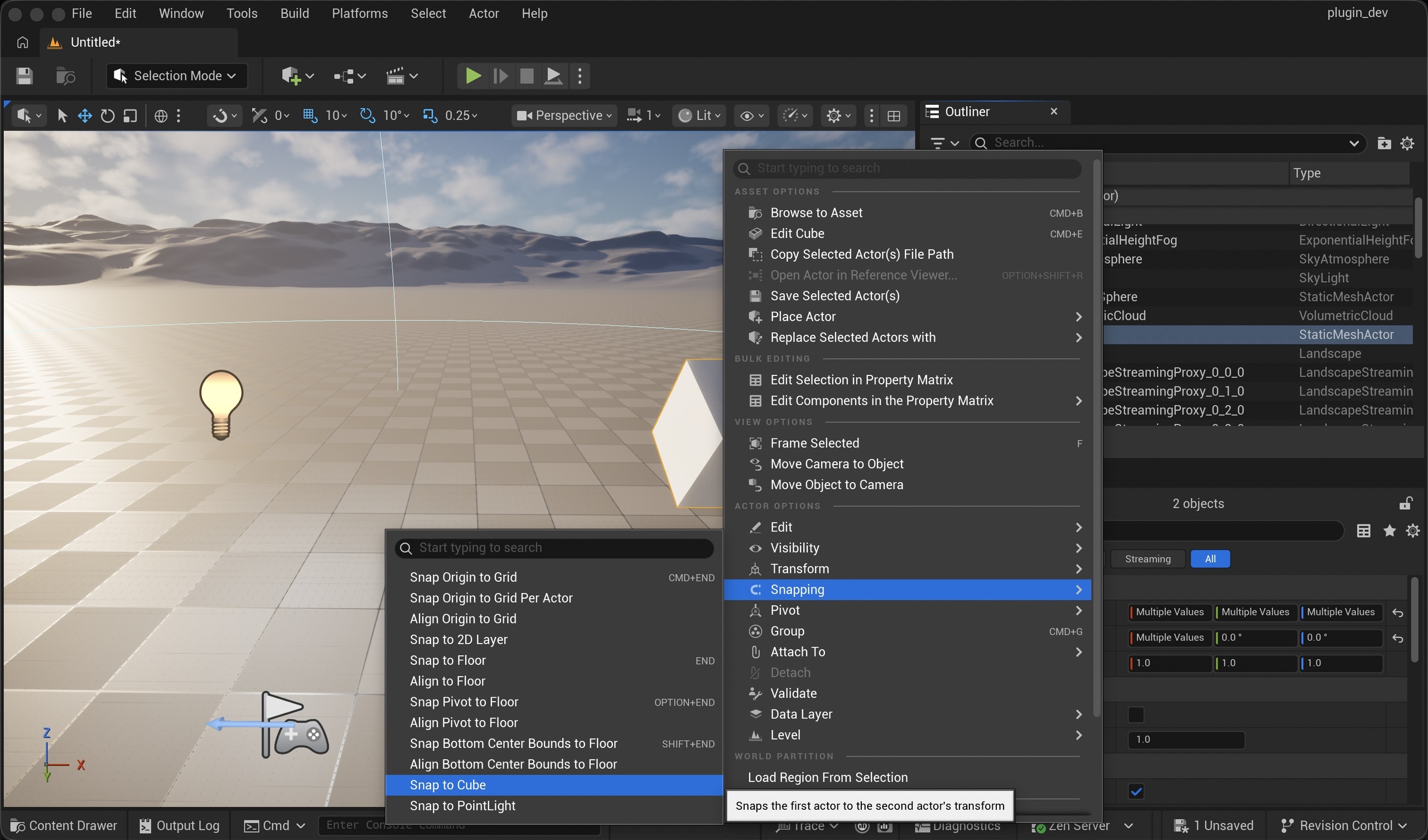
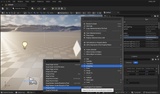
- Right-click context menus — snap entries appear in both the viewport and World Outliner when exactly two actors are selected
- Persistent settings — defaults are saved per-project and exposed in Editor Preferences
- Reversible direction — snap A→B or B→A from the same selection
How It Works
Select exactly two actors, then snap one to the other using either the right-click context menu or a keyboard shortcut.
Which actor moves?
Snap A to B : First selected actor snaps to the second
Snap B to A : Second selected actor snaps to the first
The context menu entries show the actual actor names so direction is always clear (e.g. `Snap to SM_Chair`).
What gets snapped?
By default, translation and rotation are snapped (all axes), and scale is left alone. This can be changed in the settings panel or per-operation in the inline dialog.
Usage
Right-click context menu
With exactly two actors selected, right-click in the viewport or Level Outliner and open the Snap submenu. Two entries appear — one for each snap direction — labeled with the target actor's name.
Keyboard shortcuts
`SnapAToB` and `SnapBToA` can be bound to any key in Editor Preferences → Keyboard Shortcuts → Oh, Snap!. No default bindings are set.
Alt + snap (inline options dialog)
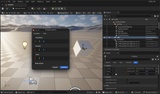
Holding Alt while triggering a snap (via keyboard shortcut or context menu) opens a modal dialog before the operation runs.
The dialog shows:
- The snap direction (`ActorA → ActorB`)
- Checkboxes for Translation, Rotation, and Scale, each with independent X/Y/Z axis toggles
- A Make Default checkbox to save the current configuration as the new default
Pressing Confirm (or Enter) runs the snap with those settings. Cancel (or Escape) aborts.
> Tip: If your snap shortcut already includes the Alt key (e.g. `Alt+S`), the dialog will open every time. To disable Alt detection, uncheck Alt Opens Inline Dialog in Editor Preferences → Level Editor → Snapping.
Snap Options
Each transform component has a section toggle (enable/disable the entire component) and three axis toggles (X, Y, Z). Disabled axes are skipped — the target actor's existing value is preserved on that axis.
Settings
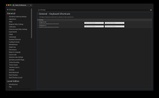
Default snap options are saved per-project. To change them:
Editor Preferences → Level Editor → Snapping → Actor to Actor
Changes here apply to all subsequent snaps that don't use the inline dialog. The inline dialog's Make Default checkbox also writes to these settings.
Installation
1. Copy the `OhSnap` folder into your project's `Plugins/` directory.
2. Recompile the project (or launch — UE will prompt to compile on first open).
3. Enable the plugin in Edit → Plugins → Editor → Oh, Snap! if not already enabled, and restart the Editor!