Descripción
Note: LCAT (available at https://www.fab.com/listings/343098bf-bcfa-4d3a-8260-96e9c77b8635) contains all the functionality in this widget and a lot more).
Update 18 Aug 2025: MAT is now an Epic Megagrant Recipient! v1.3 compatible with UE 5.6 is now available!
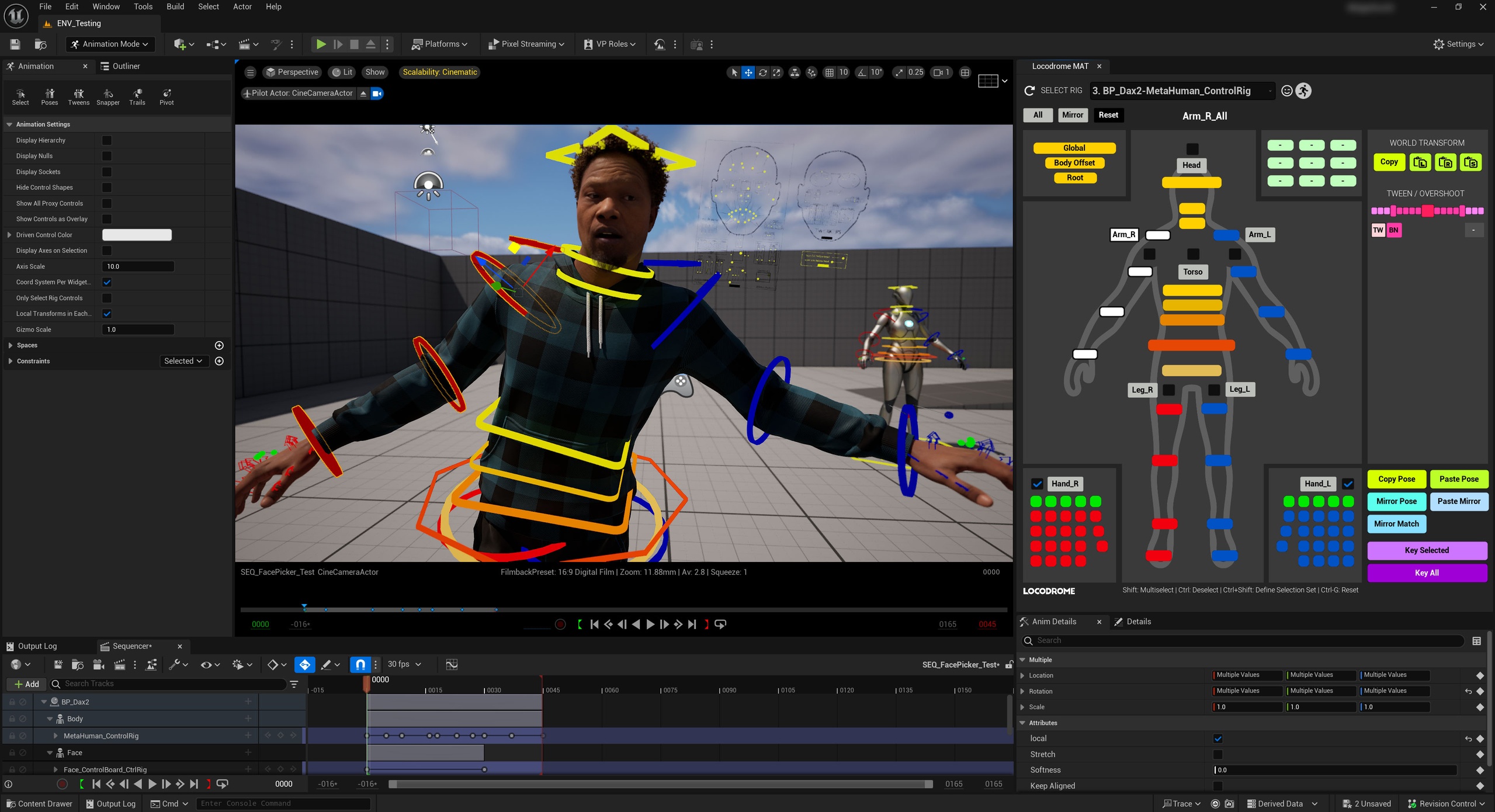
The Locodrome MAT (Metahuman Animation Tool) is an editor utility widget that makes animating in-engine with the Metahuman face and body a whole lot easier and more fun.
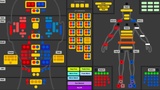
If you’ve used my Face Picker, this encompasses all the same functionality, but also does Body control rigs. It switches interfaces depending on what kind of Control Rig you select - so if you’re working with a Metahuman, it will automatically switch back and forth between the Face and Body for that metahuman. It also works with the UE5 Mannequin skeleton, and even the CC4 skeleton through Reallusion's custom Metahuman Control Rig.
Apart from standard picker functionality, there are a TON of useful animator-friendly features and toys that were developed with feedback and guidance from some of the top Unreal animators in the industry.
Here's a short video showing how it works:
This tool has sped up my work and let me concentrate on animating - I hope you find it useful!
Note: This widget requires the Common UI plugin, so please ensure that Common UI is enabled in your Unreal Engine project.
Installation
Install the tool from FAB
There should now be a folder named Locodrome in your Content folder
Note that if you place the Locodrome folder anywhere else, MAT will not work
If it is not already enabled, please enable the Common UI Plugin for your project
Inside your Unreal project's Content Browser, in the Locodrome\MAT folder, right-click on the widget ("Locodrome_MAT") and select Run Editor Utility Widget
Usage
Once the widget opens up, you can dock it anywhere in your screen layout - it will scale depending on how much space you give it - use this to adjust until the size of the text and buttons are comfortable for you
If you already had a sequence open with a usable Control Rig in it, the first available rig will be selected, and the widget's interface will switch to Face or Body depending on the type of rig it is
If no sequence is open, then open a sequence with one or more Metahuman Face or Body Control Rigs in it - without this MAT will not find a rig with which to work
Open the drop-down at the top of the picker and select the Control Rig you want to work with. If you do not see anything in the drop-down list, hit the Refresh icon to the left of the "SELECT RIG" label
Once you have a Control Rig selected, you are good to go!
Selections
Selecting a control on the MAT widget will select the corresponding control on the Control Rig in the scene - you can see the name of the control before selecting it by hovering over the control with your mouse (a tooltip will also appear showing the control name).
MAT's Face interface has several nested buttons for easy and common multi-selects - these allow the quick selection of multiple controls in a single click. Both the Face and Body interface have labeled group-select buttons for Eyes, Brows, Arms, Legs etc that also allow easy group selection.
Shift-select will add to your current selection, Ctrl-select will remove from your current selections, and clicking outside of any buttons will clear your current selection. There is also marquee selection to allow the selection of multiple buttons.
You can set up your own custom selection sets by first selecting your desired group of controls, and then Ctrl+Shift-clicking on any of the 9 mint-colored buttons in the top right of the interface. That button will now be a custom selection set, that will remain persistent even after you restart the widget or your Unreal session. To reset it, just Ctrl+Shift-click on it again with no controls selected.
Manipulating Controls
Once you have selected the controls you want, you can move them in the viewport, as per normal Face Rig usage
Alternatively, if you have a single 1D control selected, it can be convenient to use the Anim Details panel to precisely adjust its value
For the Face interface, the recommended workflow with MAT is to use the WASD keys to manipulate your selection of controls
WASD will adjust the 1D and 2D values of the selected controls (W, A will reduce / S, D will increase) in 0.1 value increments or decrements.
Note that some controls are value inverted (i.e. increasing the value of the control will move the slider downwards in the Viewport).
Note that the MAT window must be in focus for the WASD keys to work in this way
For the Body interface, similarly, you can use the WASDQE keys to manipulate your selection of controls
WASDQE will rotate the selected controls in the 3 axes, in 1 degree increments
Shift+WASDQE will translate the selected controls in the 3 axes, in 1 unit increments
The axes and direction of rotation and translation have been tuned to be as intuitive as possible, but will likely take some getting used to if being used regularly
Note that the MAT window must be in focus for the WASD keys to work in this way
The Reset button will reset the current selection of controls to their default positions
The Body interface also has a set of checkboxes that ease several common animator use cases
There are FKIK checkboxes that when checked or unchecked, hide and display the appropriate FK and IK controls in the interface. Importantly, they also place keys on the appropriate controls in the sequence to allow seamless and automatic FKIK switch-snapping.
There are also checkboxes for the Hand Keep-Aligned and Finger Auto-Interpolate animation channels built into the Metahuman Control Rig
Utility Buttons
Copy Pose: Copies the positions of the current control selection to the clipboard
Paste Pose: Pastes the positions from the clipboard to the current control selection
Note that if you de-select a control in between a Copy Pose and Paste Pose, it will not be affected by the Paste Pose action
Mirror Pose: Performs a L-R reflection of the current control selection
Paste Mirror: Pastes the positions from the clipboard to the current control selection, but as an L-R reflection
Mirror Match: Matches the opposite side controls to the values of the current control selection
Key Selected: Will add a key in Sequencer at the Playhead's current time for all the controls in the current selection
Key All: Will add a key in Sequencer at the Playhead's current time for all the controls in the rig
Body Interface Animation Tools
World Transform (used for actions like snapping a prop to a hand, or vice versa)
Copy: Will copy the world transform of the currently selected control (or other Actor) to the clipboard
Paste Location: Will paste the Location of the copied transform to the currently selected control (or other Actor)
Paste Rotation: Will paste the Rotation of the copied transform to the currently selected control (or other Actor)
Paste Scale: Will paste the Scale of the copied transform to the currently selected control (or other Actor)
Tween / Overshoot (used for tuning timing and spacing)
Use the TW / BN buttons to switch your key blending mode between Tween or Blend to Neighbor
Use the slider to set a Tween or Overshoot key at the current playhead location (the Tween / Overshoot percentage will be visible in the gray box below the slider on the right)
Use the Tween Preset buttons (+/- 20/40/60/80/90) to quickly set a tween key
Use the Overshoot Preset buttons (+/- 110/120/130) to quickly set an overshoot key
Troubleshooting
If the MAT widget does not show up in Content Browser:
Are you using a version of Unreal Engine older than 5.4? The widget does not work on engine versions earlier than 5.4
If the MAT widget runs, but the control rig selection dropdown is empty:
Please make sure you have a Sequence open with one or more usable Control Rigs (UE5 Mannequin, Metahuman Body Rig, or Metahuman Face Rig) in the Sequence (not just in the scene)
If the MAT widget runs and all the buttons are gray:
Check that the Common UI Plugin is enabled
If not, enable the Common UI Plugin, and restart your engine as prompted
Technical Notes
Requires CommonUI plugin to be enabled
Locodrome folder must remain in the project's Content folder - cannot be moved