Açıklama
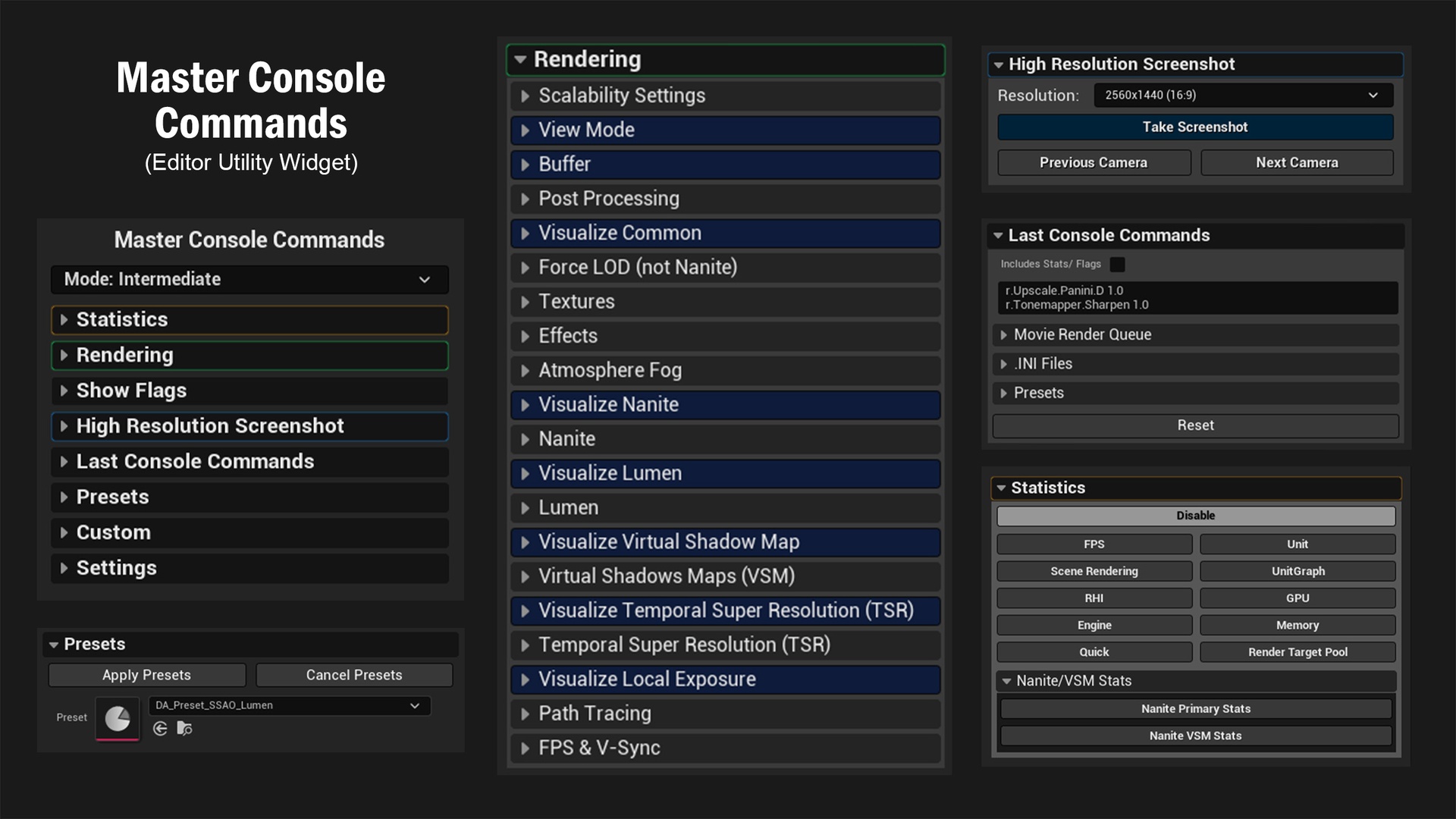
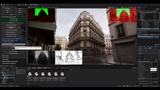
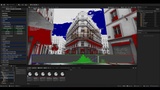
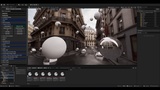
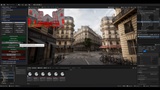
This Editor Utility Tool helps you to execute console commands in a very efficient and visual way. It is very useful for debugging, optimizing, and testing. For example, you can see the type of data being processed in your scene, as well as diagnose any errors or unexpected results.
Video Showcase: [UE] Master Console Commands - Overview
Documentation: Documentation Master Console Commands
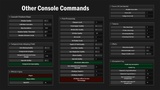
This tool lets you execute console commands in a fast, visual, and dynamic way. It’s extremely helpful for debugging and testing, allowing you to inspect the types of data being processed in your scene and diagnose errors or unexpected results. You’ll have access to the most commonly used console commands, and you can also add your own custom commands as needed.
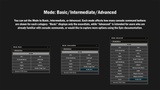
All included commands have been tested and selected based on usefulness. You can also choose how in-depth you want to go by switching between Basic and Advanced modes, which reveal additional options.
Console commands cover a wide variety of categories:
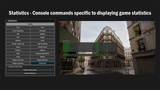
Statistics Commands: These range from basic commands like FPS, GPU, and SceneRendering, to more specific ones for systems like Niagara, audio, and even some hidden commands that aren't documented.
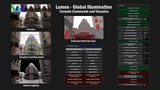
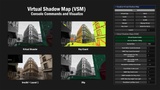
Rendering Commands: These are organized by feature groups such as Lumen, TSR, Virtual Shadow Maps, and more. You’ll find many of the most useful and interesting rendering-related commands.
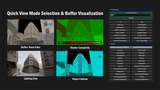
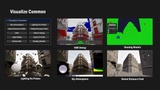
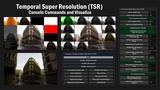
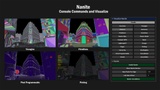
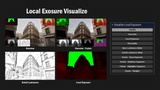
Visualize Commands: These are extremely helpful for debugging common feature issues in systems like Lumen, TSR, and Virtual Shadow Maps. Many visualization modes are deeply hidden within the engine, yet they can provide valuable insights. Additional visualization modes for other core engine features are also included.
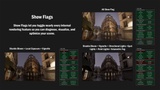
Show Flags: They are a means by which you can show or hide many of the items that are viewed within the viewport. For example, you can hide all spot lights, all point lights, or something a bit more advanced, like turning off bloom, local exposure, volumetric fog, etc.
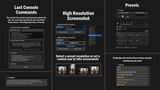
The tool also lets you capture high-resolution screenshots with just one click. You can choose from preset resolutions like 16:9, 9:16, or 4:3, or enter your own custom size, then simply press “Take Screenshot.”
You can even cycle through different cameras by using the Next Camera or Previous Camera buttons, making it super easy to frame exactly what you want before capturing.
There are tooltips for many of the buttons/parameters from this tool. They appear after hovering the mouse over a button/parameter and disappear when you move it away from the button/parameter.
Support Email: [email protected]
This Editor Utility Tool is supported only in the editor and will not function in Play mode, PIE, or packaged builds.
Important/Additional Notes (UE4): Make sure the "Editor Scripting Utilities" Plugin is enabled. (it is default enabled by default in UE5)
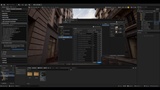
Disclaimer: Many of the presentation photos contain scenes/assets that are not included in the product. Only the tool is included in this product.