Descripción
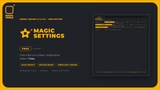
Spend less time repeating setup steps. Prepare your Unreal project, adjust groups of lights and assign materials across mesh assets from one editor panel.
FEATURES
Cinematic Build applies the selected stage with Lumen Detail Tracing and the high-quality glass project prerequisite.
Optional NVIDIA DLSS renders receive automatic MRQ jitter protection and Ray Reconstruction synchronization.
Native static-lighting and project shadow choices stay under your control.
Automatic GPU-memory detection and practical Editor Ready / Cinematic Build workflows.
Grouped light selection with search and type filters, including loaded Blueprint light components.
Per-light MegaLights participation and ray-traced/VSM shadow choices in one Undo step.
Batch material assignment for project Static Mesh assets, with a chosen slot index and Material or Material Instance.
Content Browser right-click sends selected meshes straight to the material tools.
SHOW ASSETS reveals the chosen group in the Content Browser for placement into your level.
Material-slot metadata avoids loading every mesh during selection; required loads and assignment display progress.
Artist-controlled saving, clear skipped-item counts and preserved material overrides.
SCOPE AND REQUIREMENTS
Unreal Engine 5.7 or 5.8; Windows 64-bit editor. Use the matching engine package. Source packages require a compatible C++ toolchain when built locally. Editor-only plugin; no runtime game module. Unreal Console Variables Editor is required. Intended cinematic rendering uses DX12/SM6; hardware ray tracing requires suitable hardware and project support.
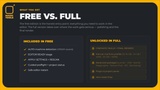
Batch material assignment targets project Static Mesh defaults, one selected slot index at a time. It does not generate textures, alter UVs, replace Blueprint defaults or override instance materials. Missing slots and read-only assets are skipped. Light tools operate on loaded level components, including placed Blueprint/Child Actor lights; they do not load World Partition cells or edit future spawns. Global renderer prerequisites must be configured separately. Free and Paid share one plugin identity: install only one edition at a time. The tools do not automatically save your assets or levels.
Documentation: user guide bundled in the plugin Docs folder.
Support and suggestions: https://magictools.studio/roadmap
PDF manual: https://drive.google.com/file/d/1ZhjsRmbYacM7wn-yJj1tvlIk0DiflIuZ/view?usp=drivesdk