

Opis
BlipTools — AI-Powered Development for Unreal Engine 5
BlipTools brings a full AI coding-agent experience directly into the Unreal Editor — chat with an AI that can actually see and act on your project: creating Blueprints, wiring node graphs, sculpting landscapes, building VFX, setting up gameplay systems, running tests, and more, all through natural language, with every action visible and reversible.
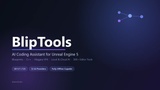
Unlike most AI plugins on the marketplace, BlipTools is not locked to a single paid API. It works fully with local, offline models (via LM Studio or any OpenAI-compatible local server) of any size, alongside optional cloud providers (Claude, GPT, Gemini) if you prefer them. Run it entirely on your own machine, for free, with full privacy — or bring your own API key. Your choice.
Forked from and built on [Autonomix](https://github.com/PRQELT/Autonomix) (MIT License) — see the Autonomix repository linked above for full attribution and license text.
What it does
- ~350 tools across 70+ domains: Blueprints, C++, Niagara VFX, Landscape, Sequencer, GAS (Gameplay Ability System), StateTree, Behavior Trees/EQS, Chaos Physics, PCG, Enhanced Input, DataTables, World Partition, Substrate materials, testing/automation, source control, CI, packaging, and more.
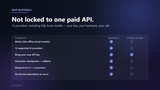
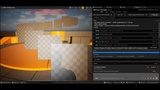
- Live Task Pipeline panel — watch each step of a multi-part request execute in real time, with clear success/fail status and durations, instead of a black box.
- Safety-gated risky actions — anything destructive or heavy (packaging a build, converting a project to C++, deleting assets) requires your explicit approval before it runs. Nothing executes silently behind your back.
- Truthful results — the AI reports what actually happened in the engine, including warnings (e.g., "asset already existed," "placed at world origin"), not a narrated success that didn't occur.
- Multi-provider, one panel — switch between a local model and cloud providers without reconfiguring your project.
- Project memory — the AI can remember facts about your project across sessions (a chosen convention, a design decision) so you don't repeat yourself.
⚠️ Cautions, hazards, and things to know before you start
This plugin executes real changes to your project. It is not a sandboxed preview — when it creates, modifies, or deletes an asset, that action happens for real, the same as if you'd done it by hand. Treat it accordingly:
1. Always work in a version-controlled project. Use Git, Perforce, or Unreal's built-in source control before your first session. This is the single most important safety net — if the AI (or you, reviewing its plan) makes a call you didn't want, you can revert it. Do not run this on a project with no backups.
2. Review before approving heavy/destructive actions. BlipTools gates operations like packaging, project-wide conversions, and deletions behind an explicit Approve/Reject prompt — read what it's about to do before clicking Approve. Rejecting is always safe and instant.
3. Local models vary widely in reliability. Small/quantized local models (the kind that run fully offline on consumer hardware) are more prone to: calling the wrong tool on the first try, occasionally producing an empty response mid-task (self-resolves on retry), or looping if not given clear instructions. This is a property of the language model you choose to run, not data loss or corruption — BlipTools includes a repetition-loop guard that automatically stops a tool from being called identically more than a few times in a row. Larger local models and cloud models are noticeably more reliable at multi-step planning.
4. Save your work before long multi-step requests. Complex asks (e.g., "build a landscape, add a river, and paint materials") can take several minutes and multiple tool calls on a local model. Save the level/project first so you always have a clean checkpoint to return to.
5. Don't run it unattended on a production/shipping project. Treat it like a very capable junior collaborator: great for scaffolding, iterating, and exploring, but changes to a live production project should still go through your normal review process before merging.
6. First launch after install may prompt to rebuild. If Unreal shows a "Missing target file / rebuild the editor?" dialog after installing or updating, this is normal for C++ plugins — follow Unreal's standard rebuild flow.
7. Network use is opt-in. If you use a cloud model provider (Claude, GPT, Gemini) instead of a local model, your prompts and relevant project context are sent to that provider per their own terms — read their privacy policy if that matters for your project. Local-model mode sends nothing outside your machine.
Recommendations for a smooth experience
- Start small. Your first few prompts should be simple, single-outcome asks ("create a Blueprint actor with a mesh component") before moving to multi-step asks ("build out a full inventory system"). This lets you calibrate how your chosen model behaves before trusting it with bigger tasks.
- Be specific about paths and names. "Create it at /Game/Characters/BP_Enemy" gets a more predictable result than "make an enemy blueprint somewhere."
- Use a fresh chat tab for unrelated tasks. Long conversation history eats into a local model's context window and can degrade quality on later requests — a new tab per task keeps things sharp.
- If a local model seems "stuck" or unresponsive, give it 10-30 seconds — generation speed depends entirely on your hardware and model size, not the plugin. If it's genuinely stuck (rare), starting a new tab always recovers cleanly.
- Check the Task Pipeline panel, not just the chat text, to see exactly what ran and what didn't — it's the most reliable source of truth for what actually happened in your project.
Requirements
- Unreal Engine 5.7 and 5.8
- For local-model mode: LM Studio (or another OpenAI-compatible local server) running a tool-calling-capable model
- For cloud-model mode: an API key from your chosen provider (optional, not required)
Engine plugins enabled: Editor Scripting Utilities, Enhanced Input, Niagara, PCG (optional), StateTree, Gameplay State Tree, Gameplay Ability System, Environment Query Editor, MetaSound, Audio Capture, Common UI, Data Validation, Python Script Plugin, Geometry Collection/Chaos, and Motion Design (optional, 5.5+) - each backs a specific tool category above; none are unused.