Описание
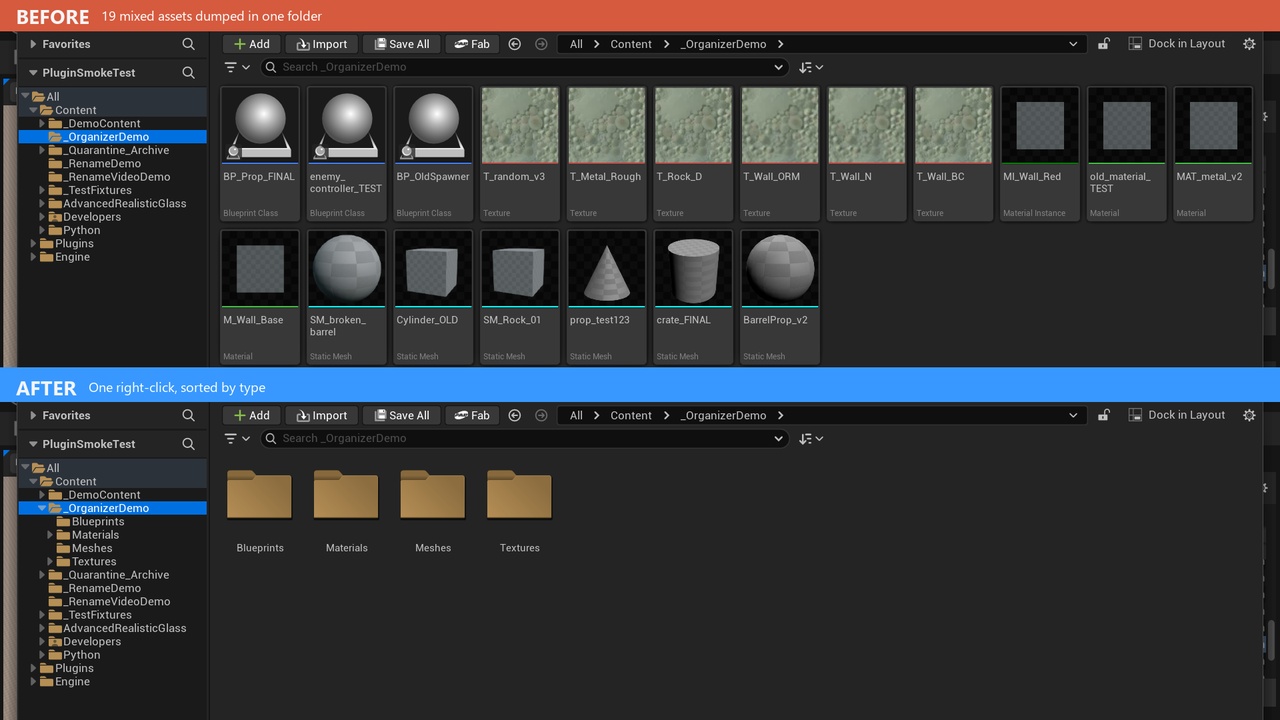
Right-click any Content Browser folder or asset selection to automatically sort assets into clean, standardized subfolders by class -- built for cleaning up messy downloaded packs (Megascans, Synty, Marketplace/Fab downloads that dump hundreds of mixed files into one folder) and enforcing consistent project structure going forward.
Features
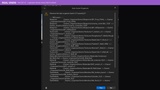
Dry-Run Audit before anything moves -- summary and itemized report logged to Saved/AutoAssetOrganizer/
50+ built-in class-to-folder mappings (meshes, materials, textures, animation, audio incl. MetaSounds, VFX, AI, Enhanced Input, media, editor-utility assets), fully editable via organization_rules.json
Texture sub-sorting by filename suffix (e.g. BC/D to Textures/BaseColor/, N to Textures/Normal/, ORM to Textures/Packed/)
Automatic reference fixup and ghost redirector cleanup after every batch
Automatic empty-folder cleanup
Collision-safe moves (adds 01, 02... on name clashes)
Real batch undo ("Undo Last Organize Batch") since asset moves aren't tracked by Ctrl+Z
Choice of preserving each asset's existing relative sub-path, or collapsing everything into one shared folder per class
Protected paths (folders/prefixes/names) that are always left alone
Requires the Python Editor Script Plugin and Editor Scripting Utilities engine plugins -- both are enabled automatically when you install this plugin, no manual setup needed
How to use
Copy the AutoAssetOrganizer folder into your project's Plugins/ directory, restart the editor, and confirm it's enabled in Edit > Plugins
Right-click a folder or a selection of assets in the Content Browser
Choose "Auto Asset Organizer: Organize Folder Structure..." or "...Organize Selected Assets..."
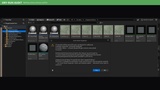
Review the Dry-Run Audit summary dialog and the itemized report saved to Saved/AutoAssetOrganizer/
Confirm to apply -- assets are moved into their category folders
If needed, right-click any folder and choose "Auto Asset Organizer: Undo Last Organize Batch..." to reverse it
What it changes in your project
Nothing is changed until you confirm the Dry-Run Audit
Moves assets into class-based subfolders (e.g. Meshes/, Materials/, Textures/) under either their existing location or a shared folder, per your organization_rules.json setting
Fixes up references created by the move and removes the resulting ghost redirectors
Deletes folders left empty by the move
Creates/updates Saved/AutoAssetOrganizer/ (audit reports) and organization_rules.json (your rules config)
Technical Information
Code Modules: AutoAssetOrganizer (Editor)
Number of Blueprints: 0
Number of C++ Classes: 1
Network Replicated: No
Supported Development Platforms: Windows: Yes, Mac: No
Supported Target Build Platforms: N/A - Editor-only tool, not included in packaged/shipped builds
Documentation Link: N/A - full setup and usage covered in the "How to use" section above
Example Project: N/A - self-contained editor utility with no external project dependencies to demonstrate
Important/Additional Notes: Requires the Python Editor Script Plugin and Editor Scripting Utilities engine plugins - both are enabled automatically when this plugin is installed, no manual setup needed