Descrizione
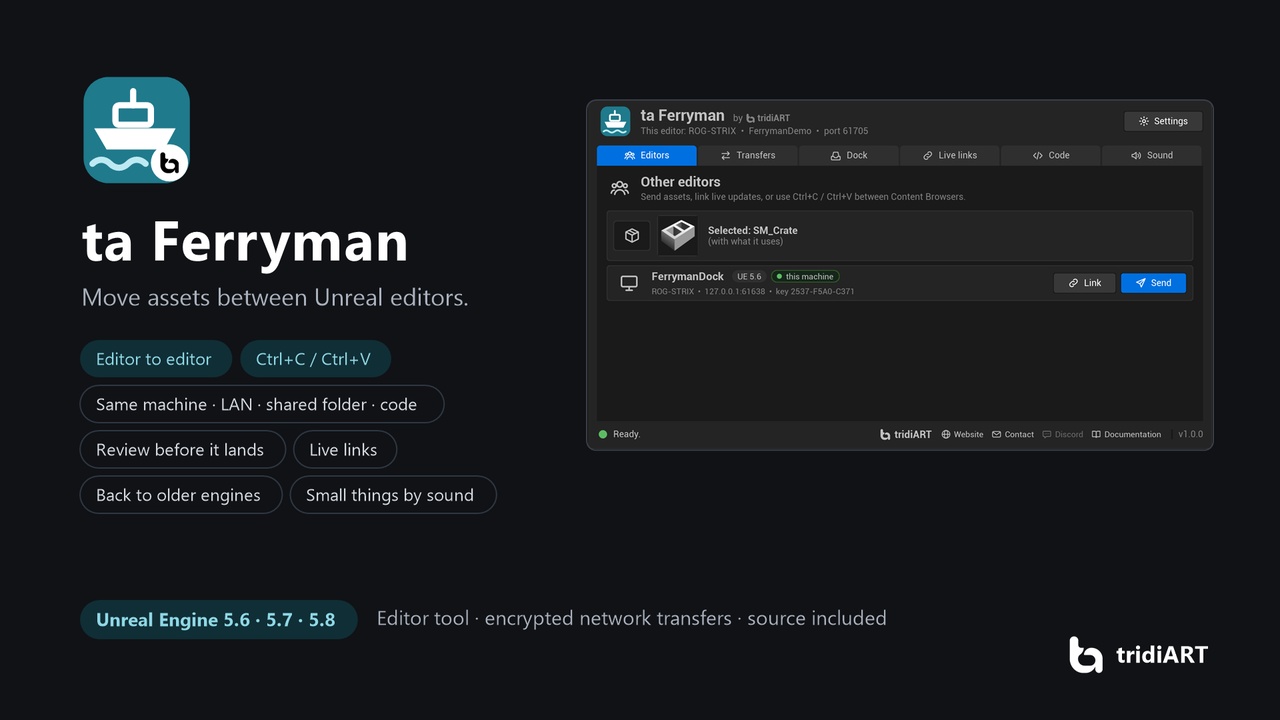
Moving an asset from one project to another usually means Migrate, a folder in Explorer, the same folder structure on both sides, and hoping nothing gets overwritten. ta Ferryman makes it one click: other open editors show up in a panel, you pick assets and press Send, and everything they use comes along. Or copy them in one Content Browser and paste them in the other.
Before anything is written you see what arrives: thumbnails, where each asset lands, and what is already in your project. Replace, keep yours or keep both. Backups are made first, and if something goes wrong halfway everything is undone.
It works for one person with two projects open and for teams: across your network, through a shared Drive, Dropbox or OneDrive folder, or with a one-time connection code.
Personal license $19.99, Professional license $49.99 (studios and companies, see the Fab EULA).
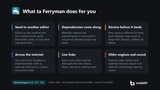
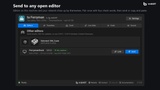
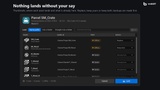
FeaturesSend to another editor: editors on this machine and on your network show up by themselves, with project, engine version and machine name. Pick assets or folders and press Send.
Copy and paste between editors: Ctrl+C in one Content Browser, Ctrl+V in the other.
Everything it uses comes along: materials, textures, meshes and other dependencies travel in one parcel. Plugins and C++ modules the assets need are listed, and missing ones are reported.
Review before it lands: new, same or different for every asset, with thumbnails. Land at the same paths, into a folder, or straight into the folder you are in. References are fixed when assets get new paths or names.
Safe: backups before anything is replaced, rollback on failure. Editors pair once with four check words; network transfers are encrypted (X25519, ChaCha20-Poly1305).
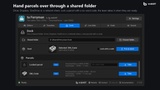
Shared folder (Dock): put parcels on a Drive, Dropbox, OneDrive or network folder, optionally locked with a six-word code. The team takes them when they are ready.
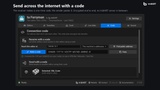
Connection code: the receiver makes a one-time code, the sender pastes it. Direct and encrypted, no tridiART server in between. Works over a VPN such as Tailscale or ZeroTier, or with a forwarded port.
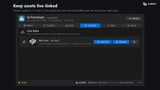
Live links: link an asset to another editor and every save sends the new version. Pause, resume or send by hand.
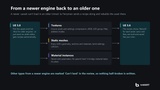
Back to an older engine: textures, static meshes (all LODs, materials, collision) and material instances are rebuilt in an older Unreal Engine from a recipe sent with them. A material instance whose parent is missing gets a bridge material. Other types are marked as unable to land, so nothing half-broken is written.
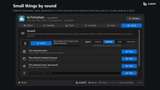
Sound: send small things from one machine to the one next to it through the speaker and microphone: material instance parameters, actor placement, a short note, or a ticket that fetches assets over the network. Four speeds, error correction.
Parcel files: save a selection as one .ferry file to send by mail or USB; dropping it into the Content Browser opens the review.
Python and Blueprint API for packing, planning and landing parcels, sending and the dock.
Enable the plugin in both projects and open ta Ferryman from the Tools menu (tridiART section).
Select assets in the Content Browser and press Send on the editor you want, or right-click > Send to. Ctrl+C / Ctrl+V works between Content Browsers too.
The receiving editor shows the arrival: check it and press Land.
Unreal Engine 5.6, 5.7 and 5.8. Editor plugin for Windows, Mac and Linux (tested on Windows). C++ source included. Both editors need ta Ferryman. Uses the engine's AudioCapture plugin for sound.
Network use: editors connect directly over TCP and announce themselves on your LAN (UDP multicast, can be turned off). Public STUN servers are contacted only when you press "Find public address". No tridiART server, no telemetry.
Documentation: https://tridiart.com/docs/ferryman/ Support: https://tridiart.com/contact/