
Description
SuperLOD — build LOD chains for hundreds of Static Meshes, with switch distances you set in metres.
Stop guessing screen sizes. Tell SuperLOD that LOD 1 starts at 4 metres and LOD 2 at 12, and every mesh in the queue gets exactly that — the tool rescales the screen sizes per mesh, so a door handle and a cathedral both switch where you said.
WHAT IT DOES
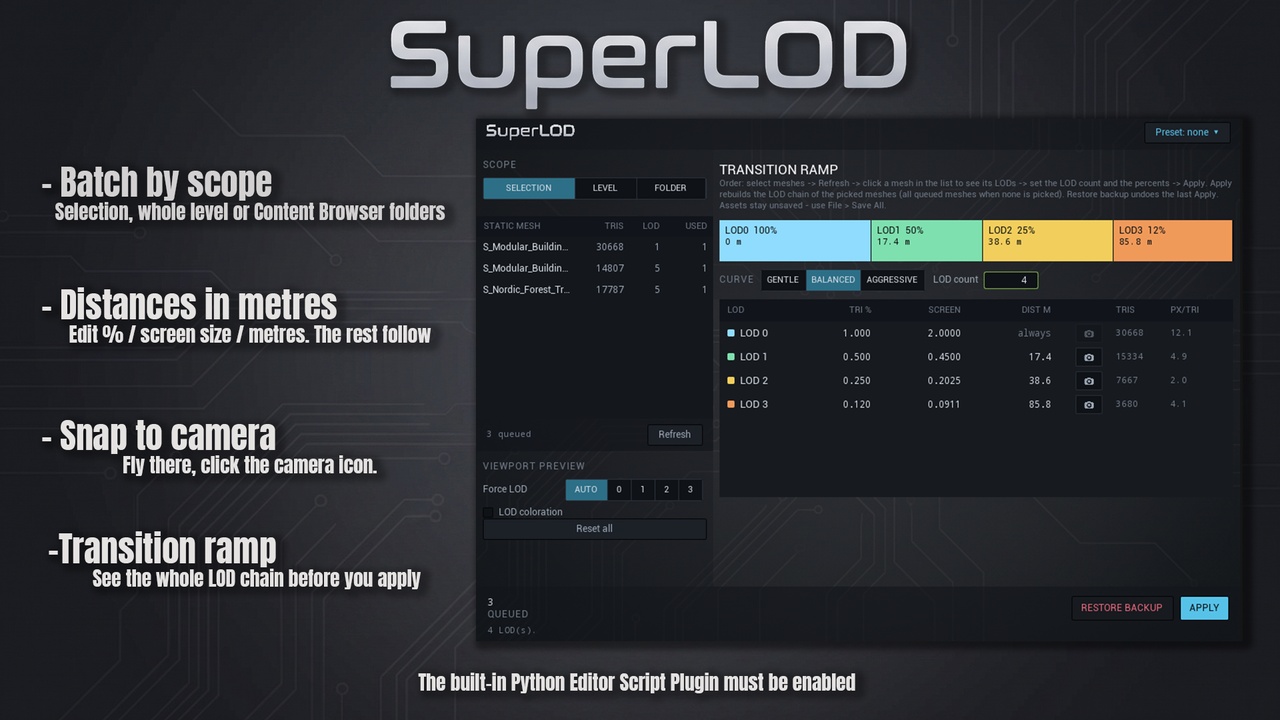
Batch by scope. Work on the selected actors, on everything in the open level (Instanced and Hierarchical Instanced meshes included), or on whole Content Browser folders with their subfolders.
Distances in metres. The LOD table shows triangle percentage, screen size and the switch distance in metres. Edit any of them; the others follow.
Snap to camera. Fly the viewport to where a LOD should kick in and press the camera icon on that row.
Transition ramp. The whole chain as one bar, with the start distance of every LOD, before you apply anything.
Presets. Five built-in profiles (Prop Small, Prop Medium, Building, Rock / Cliff, Vegetation) plus your own, saved as small JSON files you can copy between projects.
Preview without applying. Force LOD 0-3 on the queued meshes and switch on the engine's LOD coloration straight from the tool.
One-click rollback. Every Apply writes a backup first. RESTORE BACKUP puts the meshes back to their previous LOD count and settings.
Stays out of your way. Nanite meshes and engine content are skipped automatically, and the status line always says what was skipped and why.
WHY IT IS DIFFERENT
Most LOD tools ask for screen sizes and hope for the best. SuperLOD works the way artists think — in metres, per mesh, with a preview and an undo. It is a single Editor Utility Widget: no C++, no plugin to compile, no Python files dropped into your project, nothing shipped with your build.
REQUIREMENTS
Unreal Engine 5.2 - 5.8, Windows editor.
The built-in Python Editor Script Plugin must be enabled (Edit > Plugins > search "python" > restart). Section 1 of the user guide walks through it with a screenshot.
Static Meshes. Skeletal Meshes are not supported.
SUPPORT
Questions, bug reports and feature requests: contact me through this Fab page. Please include your engine version and the text from the tool's status line.