Description
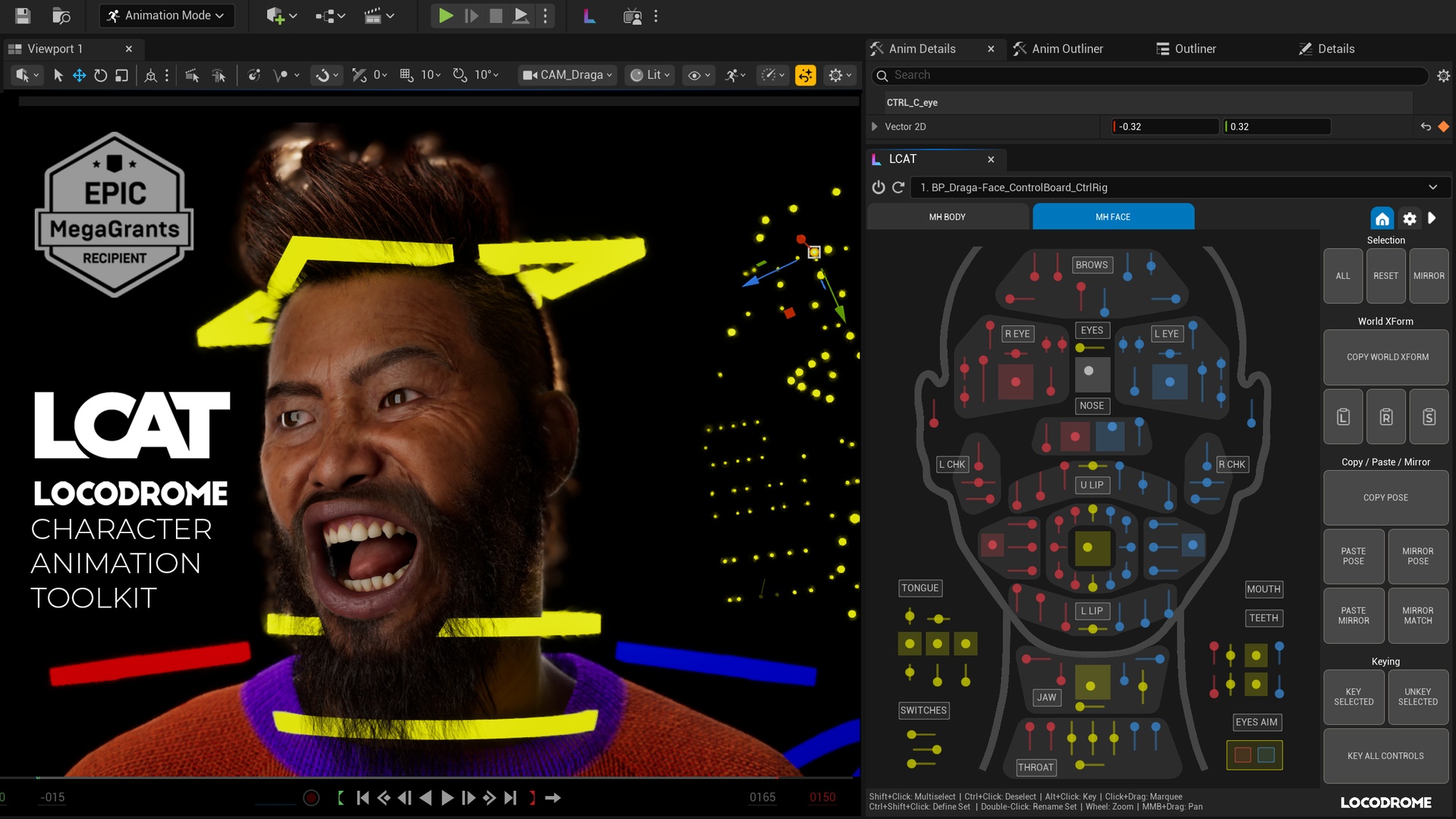
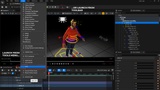
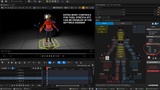
The Locodrome Character Animation Tool, or LCAT, is an editor utility widget that makes animating in-engine with the Metahuman face and body (and soon, several other character types) a whole lot easier and more fun.
If you’ve used my MAT or Face Picker tools, this encompasses all the same functionality, but also has several other bells and whistles. It also works with the UE5 Mannequin skeleton, and even the CC4 skeleton through Reallusion's custom Metahuman Control Rig.
Apart from standard picker functionality, there are a TON of useful animator-friendly features and toys that were developed with feedback and guidance from some of the top Unreal animators in the industry. It's also been rebuilt from the ground-up and is MUCH faster than MAT.
Here's a short video on how it works: https://www.youtube.com/watch?v=2Lz_5CHoBPA
This tool has sped up my work and let me concentrate on animating - I hope you find it useful!
Installation
Install to Engine / Project via FAB
In Edit -> Plugins, search for “Locodrome” and enable the Locodrome plugin
Restart Unreal when prompted
Launch LCAT from the new icon that appears in the Unreal toolbar, or from the Tools menu (search for LCAT)
Usage
Once the widget opens up, you can dock it anywhere in your screen layout - it will scale depending on how much space you give it - use this to adjust until the size of the text and buttons are comfortable for you. Some picker panels are denser than others.
If you already had a sequence open with a usable Control Rig in it, the first available rig will be selected, and the picker panel most compatible with your CR will open.
If no sequence is open, then open a sequence with a compatible Control Rig in it - for example, a Metahuman Face or Body Control Rig.
Open the drop-down at the top of the picker and select the Control Rig you want to work with. If you do not see anything in the drop-down list, hit the Refresh icon to the left of the drop-down.
If you select a Body Control Rig that is part of an Actor or Blueprint, such as a Metahuman, and switch to the MH Face panel, LCAT will automatically select the Face Control Rig for the same Actor or Blueprint, if one is in the Sequence. The reverse will work too.
The Sidebar (on the right of the widget) can be hidden if you need more space - just hit the triangle icon in the top right and it will collapse - click it again to restore. The Sidebar has a few menu tabs for different use cases:
The default is Home, which has the familiar Copy Pose / Paste Pose and other animator shortcuts
Settings gives you access to several common LCAT options
And more tabs are coming
You can zoom in and out of the Picker Panels with the mouse wheel, and pan by dragging with the middle mouse button pressed.
If at any point you want to restart the widget (glitchy behavior or anything else) hit the Power button to the left of the Refresh button and LCAT will restart - you can also close the widget and start it again from the Toolbar or the Tools menu.
Once you have a Control Rig selected, you are good to go!
Selections
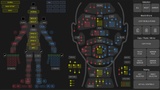
Selecting a button on the widget will select the corresponding control (or controls) on the Control Rig in the scene - you can see the name of the control in the tooltip which appears when you hover over the button.
The picker panels have nested buttons for common multi-selects - these allow the quick selection of multiple controls in a single click. Both the MH Face and MH Body panels have labeled group-select buttons for Eyes, Brows, Arms, Legs etc that also allow easy group selection.
Shift-select will add to current selection, Ctrl-select will remove from current selections, and clicking outside of any buttons will clear current selection. There is also marquee select to allow the selection of multiple buttons.
You can set up your own custom selection sets by first selecting your desired group of controls, and then Ctrl+Shift-clicking on any of the 9 buttons in the top right of the interface. That button will now be a custom selection set, which will remain persistent even after you restart the widget or your Unreal session. To reset it, Ctrl+Shift-click on it again with no controls selected.
Manipulating Controls
If the control you are selecting is a 1D or 2D slider instead of a button, you can slide the value in the widget itself and the control will move in the viewport in real-time. You can do this with multiple sliders simultaneously, but given different orientations that can be unwieldy with many sliders selected.
If you want to select a slider control without moving it you can either right-click on it, or select it with the marquee
You can also use the Anim Details panel to precisely adjust the value of such controls
The Reset button will reset the current selection of controls to their default positions
The MH Body interface also has a set of checkboxes that ease several common animator use cases
There are FKIK checkboxes that when checked or unchecked, hide and display the appropriate FK and IK controls in the interface. Importantly, they also place keys on the appropriate controls in the sequence to allow seamless and automatic FKIK switch-snapping.
There are also checkboxes for the Stretch, Hand Keep-Aligned and Finger Auto-Interpolate animation channels built into the MH Control Rig.
In the Settings Sidebar (click Gear icon in the top right of the widget) under the section named MH Body you can emable optional controls for the MH Body panel, such as Toes, extra Head / Arm / Leg / Spine controls and sliders.
Utility Buttons
Copy Pose: Copies transforms of the current control selection to the clipboard
Paste Pose: Pastes the transforms from the clipboard to the current control selection
Note that if you de-select a control in between a Copy Pose and Paste Pose, it will not be affected by the Paste Pose action
Mirror Pose: Performs a L-R reflection of the current control selection
Paste Mirror: Pastes the transforms from the clipboard to the current control selection, but as an L-R reflection
Mirror Match: Matches the opposite side controls to the values of the current control selection
Key Selected: Will add a key in Sequencer at the Playhead's current time for all the controls in the current selection
Unkey Selected: Will remove keys in Sequencer at the Playhead's current time for all the controls in the current selection
Key All: Will add a key in Sequencer at the Playhead's current time for all the controls in the rig
Other Animation Tools
World Transform (used for actions like snapping a prop to a hand, or vice versa)
Copy: Will copy the world transform of the currently selected control (or other Actor) to the clipboard
Paste Location: Will paste the Location of the copied transform to the currently selected control (or other Actor)
Paste Rotation: Will paste the Rotation of the copied transform
Paste Scale: Will paste the Scale of the copied transform
Other Notes
The following features have not been carried over from MAT to LCAT
WASD / WASDQE keyboard manipulation of controls in the MH Face and MH Body panels respectively - this caused issues when people used the S key to add keyframes, and was not a heavily used feature anyway.
Tweens / Overshoot - the new Tweener built into UE does everything this did and more - so it is now redundant
Key shifters - an improved version of this type of key manipulation is on the roadmap
Report any feedback or issues to [email protected]
Troubleshooting
If the widget does not launch or appears differently from the screenshots provided, check to ensure the following plugins are enabled
Locodrome
Common UI
Python Editor Scripting