
الوصف
TextWitch brings AI-assisted localization into the editor instead of making you bounce between spreadsheets, external tools, and copy-paste workflows.
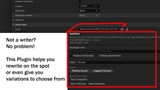
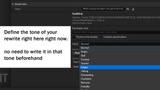
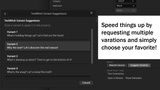
Every editable Text Variable in the Details panel gets a small TextWitch button. Click it to reword the source text, pull up alternative phrasings, or set per-field metadata like voice tone and developer notes. For bulk work, TextWitch plugs into Unreal’s Localization Dashboard so you can queue translations across your whole manifest and manage drafts from one place.
Responses go through validation before they land as drafts, with glossary terms, culture-specific rules, and markup/placeholder protection baked into every prompt so your <tags>, {{placeholders}}, and [[tokens]] don’t get mangled.
You bring your own AI provider, OpenAI Cloud or any OpenAI-compatible endpoint (Ollama, LM Studio, etc.) by pointing TextWitch at the right base URL and model name.
API keys stay out of your project .ini files: they’re read from environment variables, the Windows Credential Manager, or in-memory session storage.
Feature list
Inline TextWitch button on every editable FText property in the Details panel
Rewrite source text and suggest alternative phrasings without leaving the editor
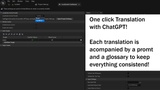
Bulk translation via the Localization Dashboard
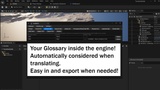
Glossary system with CSV import/export and smart term injection per prompt
Per-language culture rules and voice/emotion profiles for tone control
Markup and placeholder protection (angle-bracket tags, custom regex patterns)
Dedicated TextWitch panel (Tools menu) for glossary, archive log, and API key setup
Works with OpenAI or any OpenAI-compatible endpoint via configurable Base URL
Quick start
Enable TextWitch in Edit → Plugins.
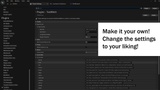
Open Project Settings → Plugins → TextWitch and set your Base URL and model (e.g. gpt-4o).
Add your API key via the OPENAI_API_KEY environment variable, or from Window → TextWitch → Settings.
Select any asset in the Details panel , FText properties now show the TextWitch button.
For bulk translation, switch to the TextWitch provider in the Localization Dashboard.
Important: TextWitch does not include any AI model or translation service. It sends the text you choose to translate or rewrite, along with prompt context (glossary terms, culture rules, metadata, etc.), to the AI endpoint you configure. You must supply your own API key, and all usage is billed by that provider under their terms. No API key is bundled with this plugin.