Opis
Quick Links Getting Started | FAQ | Bug Reporting | Feature Request
Documentation Documentation
Video Showcase Video
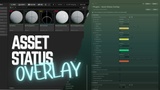
Asset Status Overlay brings production tracking directly into the Unreal Editor. No spreadsheets, no external trackers just clear visual feedback in your Content Browser asset thumbnail.
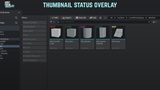
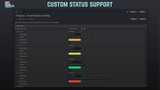
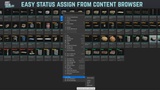
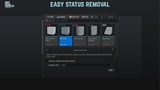
With a simple right click, you can tag any asset with a chosen custom status, and the plugin will overlay that label directly on the asset’s thumbnail. The default statuses (L0, L1, L2) can be changed or extended inside Project Settings to match your team's workflow.
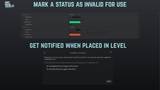
You can mark a specific status as Invalid For Use(Deprecated/Cut/Not Approved) and you will get a warning message when you are trying to use one of the "invalid for use" assets.
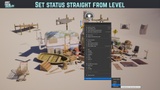
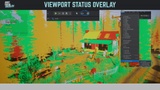
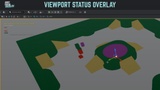
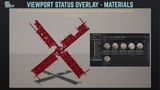
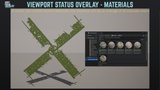
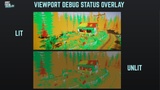
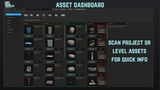
Comes with a level visualizer that you can quickly see what the status of each asset in your level is, actor and material and with a khanban board for faster and easy asset reviews.
Key Features
Assign production statuses to any Unreal asset via right click
Display selected status text as an overlay on asset thumbnails
Works with all Unreal asset types (Meshes, Materials, Blueprints, Textures, etc.)
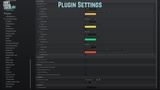
Fully customizable statuses via Project Settings
Simple, non-intrusive design that integrates naturally into the Editor
Level Visualization of actor statuses and the materials of the actor (they average)
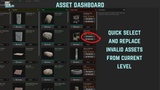
Dashboard to track project assets and Invalid To Use assets in the level.
Quick replace the Invalid assets.
Example Uses
Track asset review stages: WIP → Approved → Final
Manage level design passes: Blockout → Playtest → Polish
Support VFX or animation review workflows: Needs Review → Final
QA and testing pipelines: Pending Test → Passed → Reopened
Internal communication: Owned by X → On Hold → Needs Update
Production Status Overlay helps teams stay organized and reduces friction in large productions by keeping asset progress visible to everyone at a glance.
Disclaimer:
Material replacement using Asset Dashboard not currently supported
Older versions of the tool require a folder back and forth to refresh thumbnail status (no longer the case with version 4.0)
Technical Details
Tool is relying on Metadata Tags to set a status and then based on that status display it on the Thumbnail.
In Project Settings these statuses can be populated to fit your team's needs.
This plugin uses the EditorScriptingUtilities plugin for editor-side asset metadata operations; EditorScriptingUtilities must be available in the editor for full functionality.