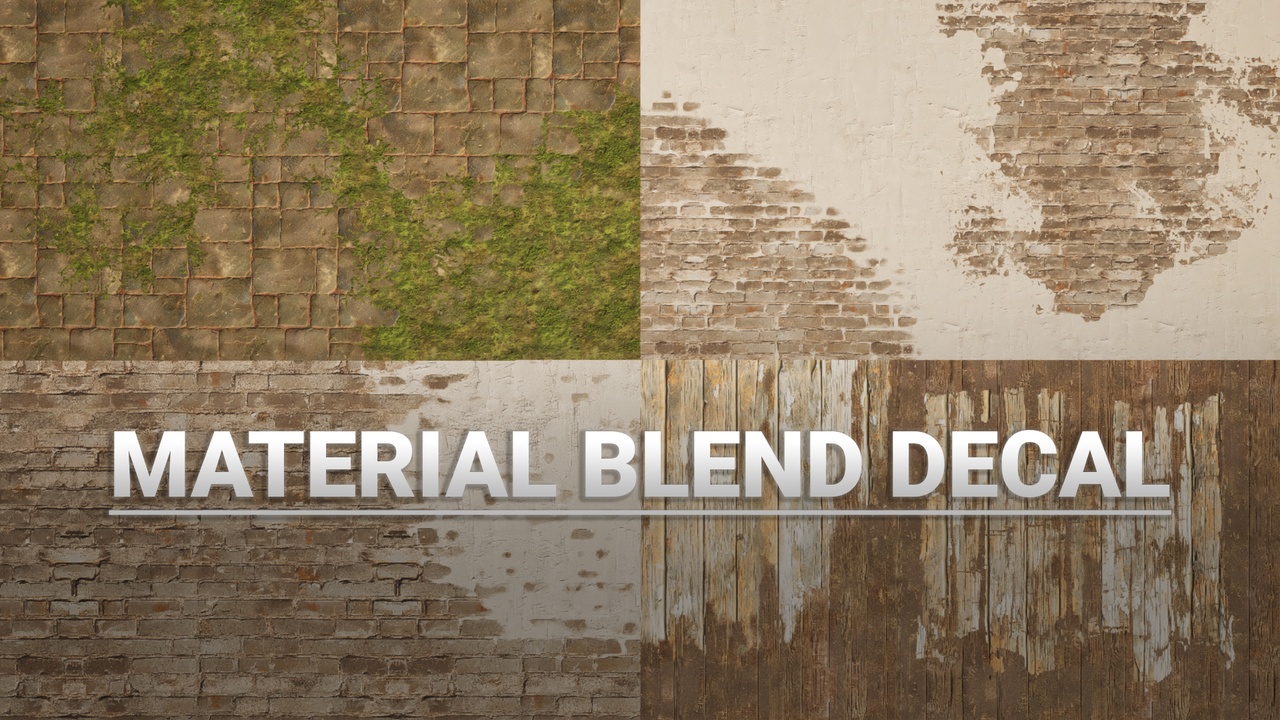
描述
Overview Video: Material Blend Decal
More infos at: https://www.a-maze.games/blog/material-blend-decal
PROS
- Pixel perfect Material Blend on across multiple Surfaces
- Independent Data Layer to Manage details separate from scene geometry.
- Can be procedurally placed and authored
- Can be placed in prefabs & instanced
- No LOD flickering
- Mesh decals can provide advanced shapes
- Can be animated
CONS
- Decals will not add specular on surfaces - which is fine for 99% workflows
- Just one gradient map - two are possible when decals don't need metallic
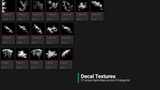
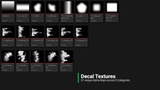
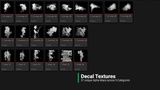
- Decal Textures Resolution should be capped to 256px-512px to be game performant
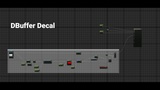
DBuffer Decals can be used for a wide variety of blending and material manipulation. I aimed to maintain all the usual decal behaviors, including dynamic gameplay applications like blood splatter and other common decal uses. To ensure compatibility with all pipelines, the Asset Pack only utilizes the specular channel, which is typically unused 99% of the time.
Depending on the trade-offs you are willing to make with the provided channels for other decals, you can further customize this approach. For example, if metallic decals are not required on certain surfaces, that decal channel can also be repurposed to create a second blend layer.
Important Steps for custom Setups:- Disable DBuffer response in the Surface Materials you want to use Decal blending
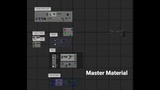
- Implement custom DBuffer response Material Function for all Materials you want to use it.
- Copy the Blend part and use it for your custom Blending
- ALL packed Displacement and Gradient Maps needs to be set to Mask compression in the Texture settings
- The Material Blend Decal needs to have a Specular Value set at 1 to enable proper blending.
- Set priority order to -1 as the Material Blend Decal needs to operate below all other decals to work as expected.
- For all other decals, set the specular value to zero and layer above blend decals, unless a specific effect is desired. E.g. blending from a clean surface through dirt puddle, the specular should also be set to 1
The way Epic designed the Decal Render Pipeline means that writing to the specular channel will also write to roughness and metallic channel and vice versa.
For our Blend-Decal there are some edge cases where you see a harsh line on roughness blending. This can be solved by adjusting the roughness value of the Blend-Decal close to the surface roughness you are applying the blend on.