
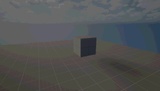
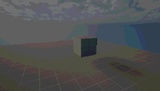
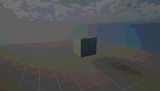
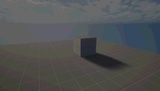
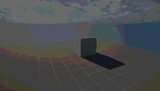
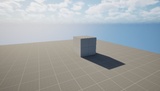
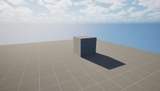
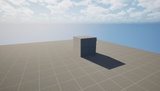
الوصف
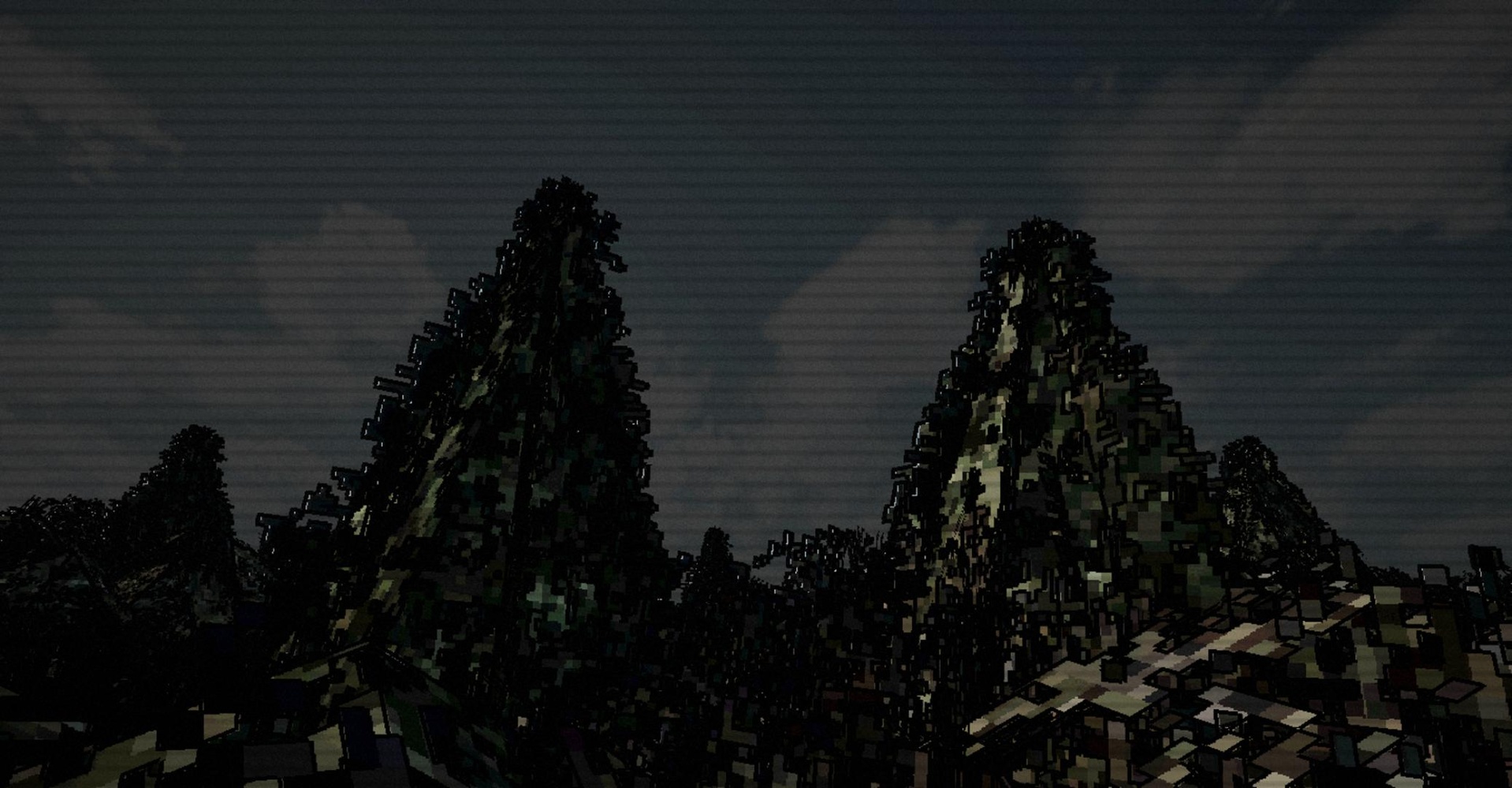
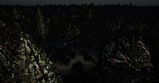
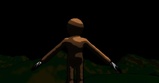
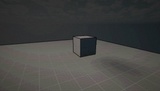
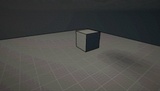
Simple Graphics Toolkit is an easy-to-use Unreal Engine plugin for changing your game's graphics with a range of stylized and retro effects. Customize lighting, shadows, outlines, posterization, vertex jitter, atmosphere effects, and more from a single editor panel.
How to use
Install the plugin in your project's Plugins folder.
Open your project and let Unreal build the plugin.
Open Tools → Graphics Setup.
Adjust the settings and presets to create the look you want.
Most features work with no additional setup.
Graphics Presets
1990s
Early 2000s
Late 2000s
2010s
Xbox 360
PSX
PS2
GTA IV
GTA San Andreas
Lethal Company
Unreal Engine 5
Unreal Engine 4
Unreal Engine 3
Unreal Engine 2
Unreal Engine 1
What requires setup — and what doesn't
Zero setup: Shadows, Texture Quality, Global Illumination, Reflections,
Screen Percentage, Texture Max Size (all plain CVars) — and Shading Mode,
Outline, Artificial Vertex Jitter, Posterization (all live in the
auto-generated post-process material). Just use the panel.
Real Vertex Jitter is the one exception. True per-vertex clip-space
snapping can only happen in a material's vertex shader (World Position
Offset) — there's no engine-level override that can inject that into
arbitrary materials. To use it:
1. Create a Material Parameter Collection, add one scalar parameter named
exactly `VertexJitterAmount`.
2. Assign it to **Project Settings > Plugins > Graphics Toolkit >
ParameterCollection**.
3. In each material you want affected, add a Collection Parameter node
for `VertexJitterAmount` and wire it into a World Position Offset snap
function (quantize object-space or clip-space position to a grid sized
inversely by the amount).
Switch Vertex Jitter Type to Artificial any time to go back to zero-setup.