الوصف
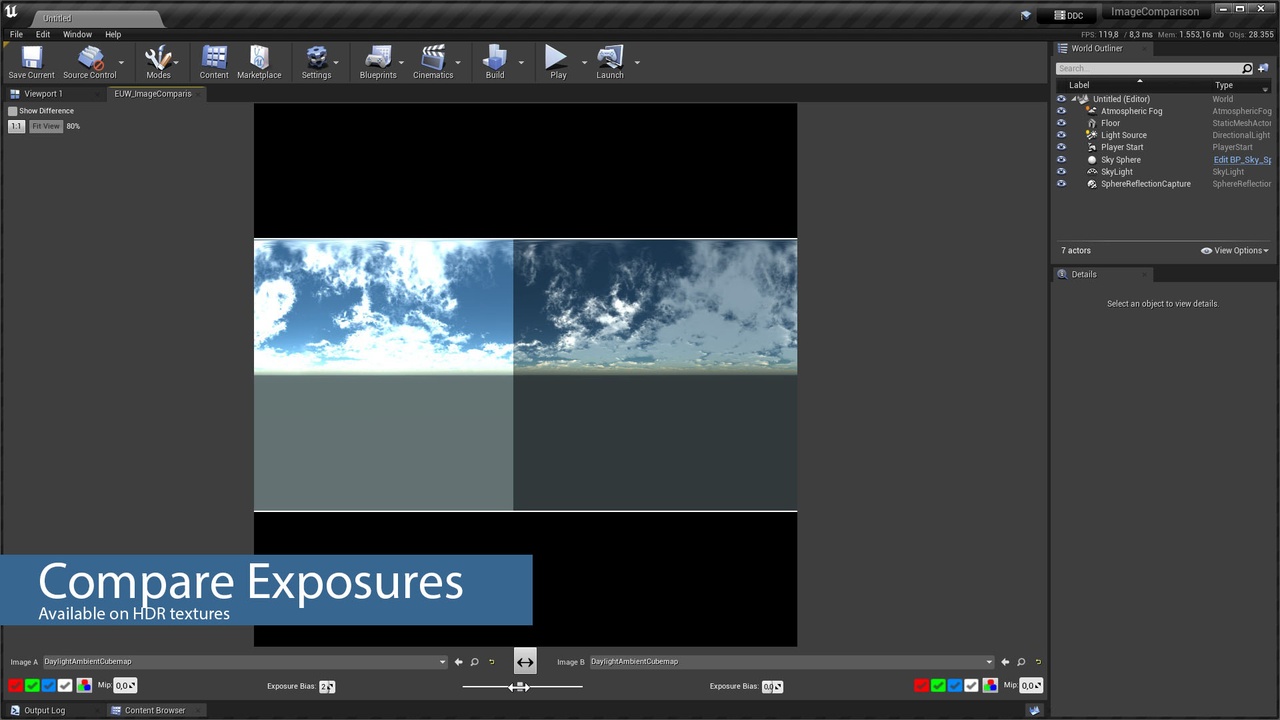
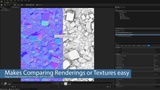
This tool helps you to compare 2 textures side by side, making it easier to evaluate textures:
- Drag the line between the images back and forth to find differences
- Compare screenshots when adjusting scalability settings or experimenting with rendering features
- Evaluate the effects of different texture compressions and resolutions
- When using render targets to create textures, compare your outputs to find errors
- Difference view mode and channel selection supported to find even tiniest differences
This tool supports all the viewing options you're used to from Unreal's texture editor:
You can select mips or channels to display and change the exposure values used for HDR textures.
To detect even tiny differences, you can use the Difference View Mode that visualizes the difference between the two images for each pixel.
The pictures shown in the screenshots are used for demonstration purposes only and aren't part of the tool.
Note: The tool doesn't allow comparing 2D textures with cube maps, so when selecting a cube map for either A or B, the other texture switches to the last cube map used in that slot.
Usage
- After adding the plugin content to your project, right-click on EUW_ImageComparison and select Run Editor Utility Widget from the context menu to open the tool (From now on, the widget is registered and can be opened via Window/Editor Utility Widgets/EUW_ImageComparison)
- Choose textures for Image A and B from the dropdown menus left and right. You can move the line between the two by using the slider at the bottom of the tool or just clicking and dragging the cursor in the texture viewport. Between the two dropdown menus is a button with two arrows to switch the textures, in case you want the texture on the left to be on the right and vice versa.
- In the top left corner is a checkbox to activate the difference view mode, below that you can see the current zoom level and set it to 1:1/fit the view.
- At the bottom of the widget, there are several settings that exist twice, once for each image. The 4 checkboxes control the visibility of the color channels for each texture. The button right to the checkbox restores the default (all channels visible). Click on the button again to restore the last manually defined configuration.
- Right to the button, you can see and change the current MIP index. If it's greyed out, the texture doesn't have MIPs.
- If one of your textures is an HDR texture, an additional setting for the exposure bias becomes visible.
Extending the Tool
If you want to modify the widget or add new features, there are two critical assets to start with:
EUW_ImageComparison is the widget with the whole UI and most of the logic. The viewport is drawn using two dynamic material instances, MID_2D and MID_Cubemap.
Most UI widgets modify parameters on these two MIDs whenever any values on them are changed. These parameters control how the textures are displayed.
To be able to change them on the fly, some boolean variables are expressed using floats. 0.0 equals False, 1.0 equals True.
The only exception is the isCubemap parameter. Instead, there is a material instance of the material that's used to display cube maps.
M_ImageComparison is the parent material of the MIDs used in the viewport. All features that need to be controlled independently for each of the two textures are put in the MF_Image material function, which is used twice in the material. Most of the nodes are used to display textures correctly, whether they are sRGB/linear or normal maps.
There are two separate UV setups, depending on whether the texture is a 2D texture or a cube map.
Other Assets and what they do
MF_FixRatio makes sure non-square textures are displayed with the correct aspect ratio.
MF_AddMatte displays all pixels outside of the 0.0-1.0 UV range as black.
MF_sRGBToLinear converts a color from sRGB to linear.
EUW_ChannelSelector contains the check boxes that control the active channels and contains the logic to switch between the last manually set configuration and the default.
BP_ComparedImage and the data assets derived from it just contain references to the displayed textures.