描述
Alternatively, you can download the APK and test it directly on your Android device.
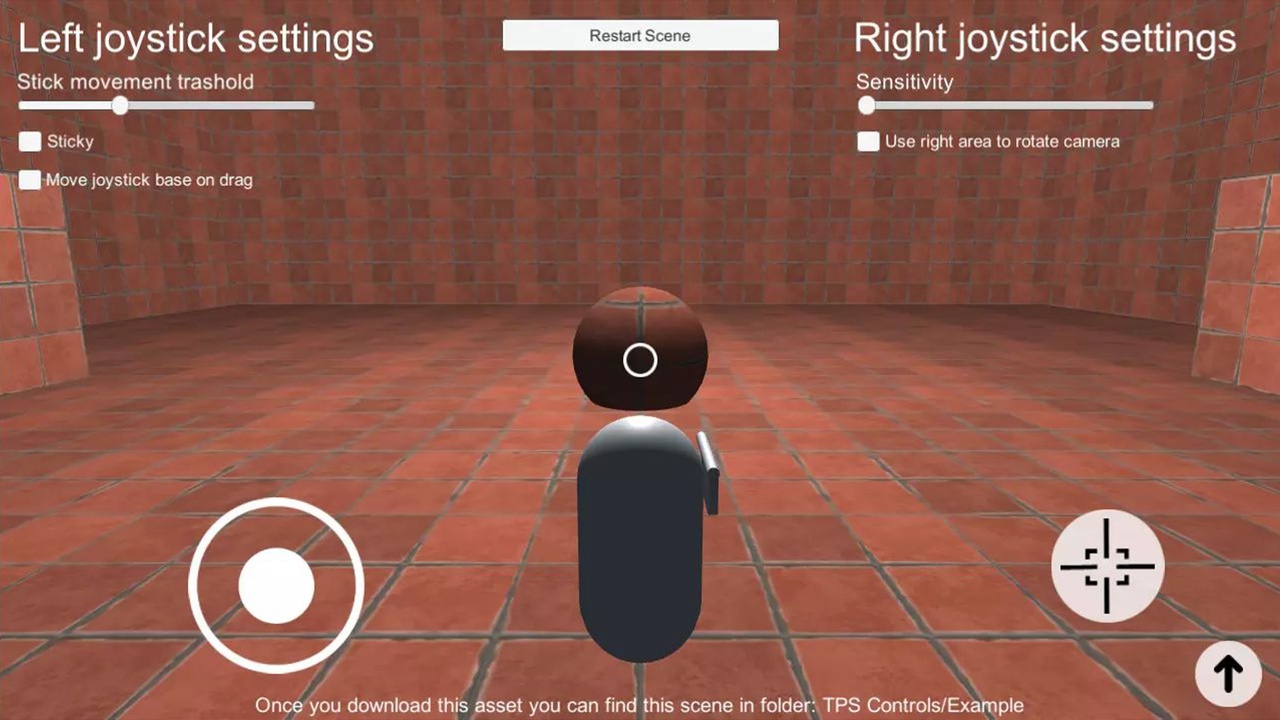
This asset provides TPS (Third-Person Shooter) controls for mobile devices, offering an easy setup and intuitive use.
How to UseAdd the Prefab to Your Project:
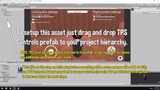
Drag and drop the "TPS Controls" prefab from the "Prefabs" folder into your project hierarchy.
Note: The camera is attached to the "TPS Controls" prefab, so be sure to remove any other cameras in your scene.
Testing in Unity:
After completing the previous step, click the Play button in the Unity editor. You’ll be able to control the joystick as seen in the example scene.
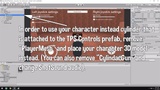
If you’d like to replace the capsule mesh with your custom player 3D model, follow these steps:
Replace the Capsule Mesh:
Delete the "PlayerMesh" GameObject (this is a child object of the "Player" GameObject you added in step 1).
Place your custom 3D model in its place.
Now, when you click Play in Unity, your character will move, but without animations. To add animations, proceed with the following steps:
Setting Up Animations:
To integrate your custom animations, you’ll need to add some code. Use the following static variable to detect player movement direction:
JoystickLeft.positionX
If this value is negative (ranging from 0 to -1), the player is moving left.
If the value is positive (ranging from 0 to 1), the player is moving right.
Example:
csharp
Copy code
if(JoystickLeft.positionX < 0) { print("Player is moving left at speed: " + JoystickLeft.positionX); } if(JoystickLeft.positionX > 0) { print("Player is moving right at speed: " + JoystickLeft.positionX); }
JoystickLeft.positionY
If the value is negative (ranging from 0 to -1), the player is moving backward.
If positive (ranging from 0 to 1), the player is moving forward.
Example:
csharp
Copy code
if(JoystickLeft.positionY < 0) { print("Player is moving backward at speed: " + JoystickLeft.positionY); } if(JoystickLeft.positionY > 0) { print("Player is moving forward at speed: " + JoystickLeft.positionY); }
Detecting Camera Rotation:
To detect rotation changes when the player drags their finger on the right side of the screen, use JoystickRight.rotX and JoystickRight.rotY.
These variables return values between 0-360.
If you're using the "Use right area to rotate camera" option, also use the JoystickLeft.angle static variable for additional camera control.
You can now create your own logic for triggering animations based on player movement and rotation.
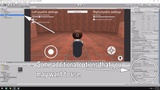
Sticky Option: When enabled, the joystick will be invisible and will appear at the position where the screen is touched. If unchecked, the joystick remains in a fixed position on the screen.
Stick Movement Threshold: Determines how far the joystick can move from its central position before it starts responding to input.
Move Joystick Base On Drag: Enables or disables the movement of the joystick base when dragged outside its designated area.
Sensitivity: Controls how quickly the character will rotate when the player drags their finger across the right side of the screen.
Rotation Y Max Angle: Limits the rotation of the camera on the Y-axis when the player drags their finger on the right side of the screen.