

Description
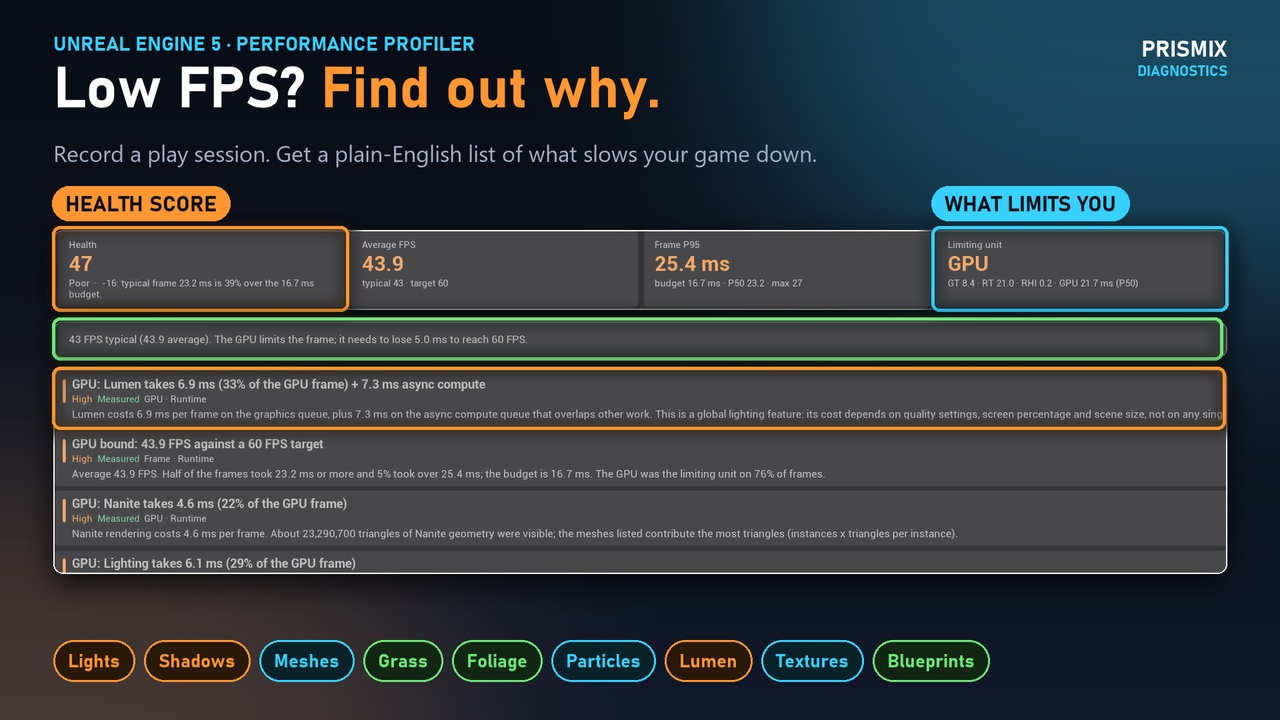
Low FPS? Find out why in minutes. Record a play session and get a plain-English list of what slows your Unreal Engine 5 game down: lights, shadows, meshes, grass, foliage, particles, Lumen, textures and Blueprints, each with the exact asset or setting to change.
Documentation Showcase
Then measure it. The profiler tests the fixes on your own machine and shows how many FPS each one really gained, so you can aim for 60, 90 or 120 FPS with far less guessing. You usually record a play session yourself (it can also record on its own in a standalone or packaged build).
Please read this first: the results are suggestions, not guarantees. The tool cannot see everything. Assume that at least 30% of real problems may be invisible to it, for example cost per material, cost per Blueprint node, cost per actor on the CPU, GPU work it has no timer for, places or moments you did not record, and differences between machines. Think of it as a much easier and more explainable first look at where your project might be losing performance, for beginners and pros. It is not a replacement for Unreal Insights. For deep work, use Unreal Insights (the Deep capture opens a trace in it). It does not promise to find every problem or to raise your FPS.
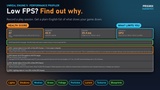
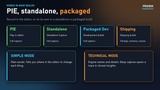
Set up in a few steps: open Tools > PRISMIX Diagnostics, press Standalone Capture, then open the Plan page and pick the frame rate you want. Simple mode explains everything in plain words and tells you where in the editor to change each thing. Technical mode shows the engine names and details.
Features
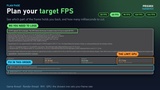
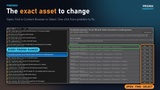
Plan for your target FPS: shows which part of the frame holds you back (game thread, render thread, RHI or GPU), how many milliseconds you would need to lose, and a list of things to look at, with the assets, lights and settings behind them. Open, Find in Content Browser and Select take you straight to them.
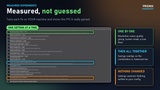
Measured experiments: lowers one setting at a time (resolution, each scalability group, hardware or software Lumen, a Low floor) and measures the change next to baseline windows, then applies them all together, because separate savings overlap. You see what each one and the combination bought on your machine. Settings are restored and nothing is written to your config.
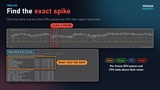
Camera routes: record a walk through your level and every measurement replays that same path, so the stretch where your game drops is measured, not a single still view. Or capture from the editor camera.
Scene features: landscape grass, the foliage tool, PCG, Niagara particles, fog, hair (Groom), heavy characters and landscape Nanite are found and listed. Experiments are offered only when the scene has the feature: grass off, grass at 50%, landscape without Nanite, hair strands off, particles not drawn, cheaper or no volumetric fog.
Works in many builds: PIE, standalone, packaged Development and Shipping. Shipping builds record frame timings, memory and the scene census only.
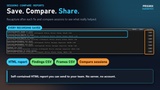
Reports: self-contained HTML report, findings CSV and frames CSV.
Honest labels: every number says how it was obtained: Measured, Strongly Attributed, Estimated, Inferred or Unknown. When it does not know something, it says so. No network access and no telemetry. Nothing leaves your machine.
Documentation and Support
Step-by-step guide + a simple explanation for most things that tank your FPS.
Support/Questions: The fastest way to get an answer is to write a comment under the YouTube video (link above), or email [email protected].