描述
Browse, Edit, and Compare Unreal Engine DataTables Faster
Managing multiple DataTables through separate editor windows quickly becomes slow and difficult to track. Repeated value changes, large row sets, complex properties, and manual table comparisons can turn routine data work into a time-consuming process.
DataTable Pro Editor brings these workflows together in one dockable Unreal Editor panel. Browse every DataTable in your project, edit supported values, manage multiple rows, search and replace repeated data, control visible columns, compare tables, and export results without constantly switching between separate assets.
Watch Selected DataTable Workflows
Key Workflow Benefits
• Browse project-wide DataTables from one unified workspace
• Edit simple and complex DataTable properties
• Select, duplicate, delete, and update multiple rows
• Find and replace repeated values across table data
• Customize visible columns for focused editing
• Compare two DataTables with field-level differences
• Export complete DataTables and comparison results
Project-Wide DataTable Browser
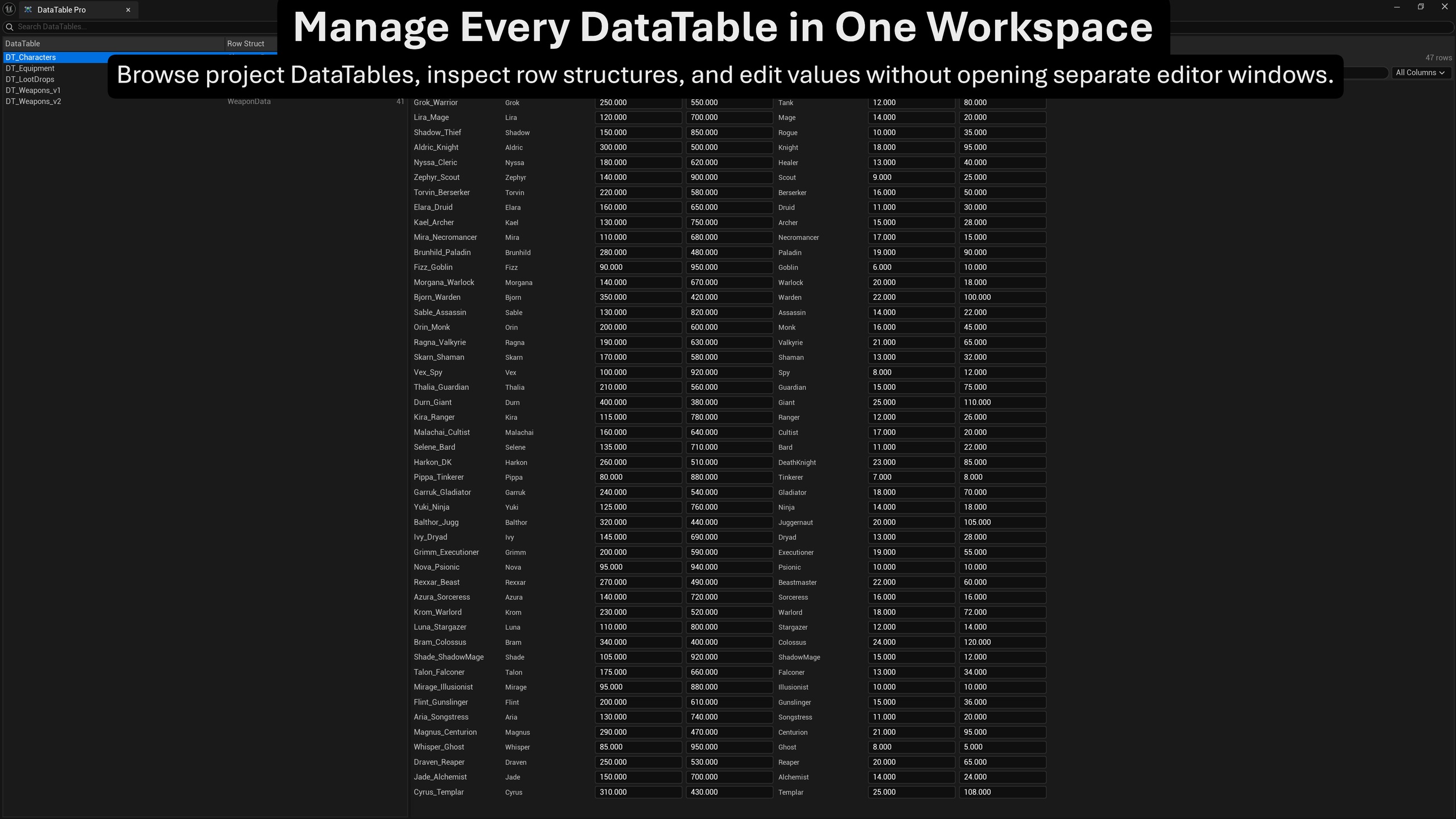
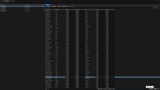
View DataTables across the entire project from one central browser. Each entry displays the asset name, assigned Row Struct, and current row count.
Select a table to load its rows directly into the Browse view. The table presentation is generated dynamically from the selected Row Struct, allowing the same workspace to support different DataTable layouts.
Inline Property Editing
Edit commonly used values directly inside the table, including:
• Strings
• Names
• Text
• Integer types
• Float and double values
• Booleans
• Enums
Integer fields display without unnecessary decimal places, while float and double fields retain decimal formatting. Supported changes integrate with Unreal Engine transactions for Undo and Redo.
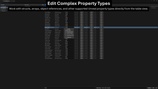
Expanded Complex Property Editing
Additional Unreal Engine property types can be edited through the built-in property editing workflow, including:
• Structs
• Arrays
• Sets
• Maps
• Object references
• Soft object references
• Class references
• Soft class references
Struct-based values such as Gameplay Tags, vectors, rotators, transforms, and colors use the same editing workflow. Complex fields display compact previews directly in the table, while the Edit action opens the detailed property editor when deeper changes are required.
Row Management
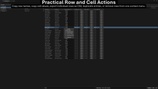
Create, duplicate, delete, and rename DataTable rows without leaving the plugin window.
Available row and cell actions include:
• Add Row
• Duplicate Row
• Delete Row
• Rename Row
• Copy Row Name
• Copy Cell Value
• Copy Row as CSV
New rows receive safe generated names and can be renamed directly. Row operations participate in Unreal Engine’s transaction system where applicable.
Multi-Row Workflows
Select multiple rows using Ctrl+Click or Shift+Click.
Multi-row workflows include:
• Duplicate multiple selected rows
• Delete multiple selected rows
• Paste a compatible clipboard value into the active column across selected rows
• Undo or redo supported multi-row changes as one editor transaction
• View the number of currently selected rows
Deleting more than one row requires confirmation to reduce accidental data loss.
Find and Replace
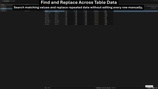
Use the integrated Find and Replace bar to locate and update repeated values across the loaded DataTable.
Available controls include:
• Find
• Previous Result
• Next Result
• Match Case
• Replace
• Replace All
• Search across all columns
• Search within a selected column
Keyboard shortcuts include Ctrl+F, F3, and Shift+F3 for faster navigation.
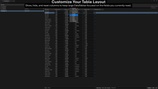
Column Management
Use the Columns menu to focus the table on the fields currently relevant to your task.
You can:
• Show or hide individual data columns
• Restore all columns with Show All
• Return to the default layout with Reset Layout
• Keep column visibility settings separately for each DataTable
The Row Name column remains visible so rows can always be identified.
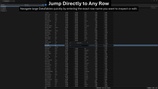
Navigation and Quality-of-Life Tools
Navigate large DataTables more efficiently with:
• Jump to Row using Ctrl+G
• Manual table refresh
• Displayed-row counter
• Selected-row counter
• Search by all columns or one selected column
• Ascending and descending column sorting
• Large-table warning settings
These tools help keep large or frequently edited DataTables manageable without changing the normal Unreal Editor workflow.
Complete DataTable CSV Export
Export the currently loaded DataTable as CSV directly from the Browse view.
The export includes:
• Row Name
• All available DataTable columns
• Proper CSV escaping for values containing commas, quotation marks, or line breaks
Individual rows can also be copied as CSV through the row context menu.
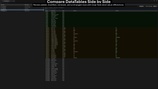
DataTable Comparison
Compare two compatible DataTables from the integrated Diff view.
The comparison identifies:
• Added rows
• Modified rows
• Removed rows
• Unchanged rows
Modified rows include field-level differences with values from both tables. Summary counts provide a quick overview, while search and filtering help isolate relevant results.
Selecting a comparison result can navigate back to the matching row in the Browse view.
Diff Export
Export comparison results for external review or processing.
Supported formats:
• CSV
• JSON
Diff exports include the change type, row name, field name, and values from both compared tables.
Use Cases
• Reviewing balance and gameplay data
• Managing item, character, equipment, or loot tables
• Updating repeated values across large row sets
• Editing structs, containers, and asset references
• Comparing production and test DataTables
• Reviewing changes between table revisions
• Exporting DataTable content for external analysis
• Working with large project-wide collections of DataTables
Resources and Support
Watch Selected DataTable Workflows
For setup questions, bug reports, feature requests, and product support.