Description
Provides in-game control of hardware ray tracing settings directly through Blueprints,
allowing dynamic adjustments during runtime.
🔹 Key Blueprint Nodes
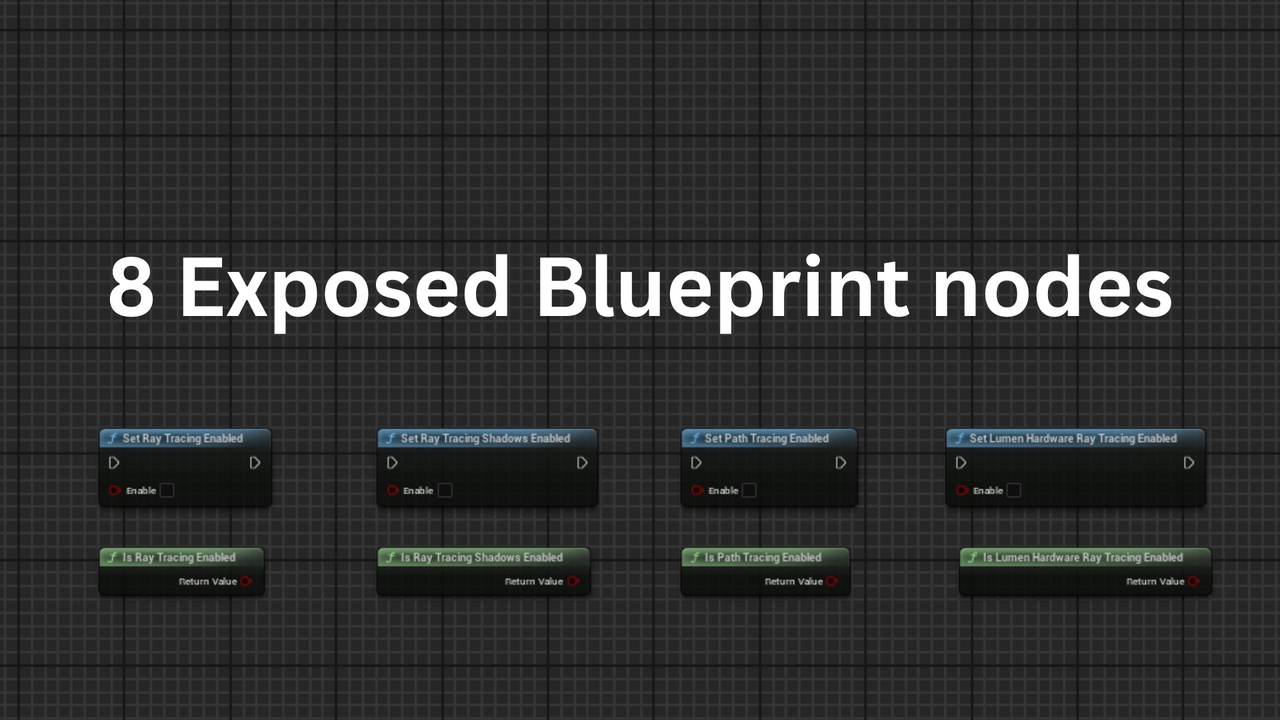
The plugin exposes a suite of Blueprint nodes for managing Unreal’s ray tracing pipeline:
✅ Setter Nodes (Persistent Configuration)
Set Ray Tracing EnabledControls global hardware ray tracing support (r.RayTracing).
Automatically enables r.SkinCache.CompileShaders as required.
Set Ray Tracing Shadows EnabledEnables or disables ray-traced shadows (r.RayTracing.Shadows).
Set Lumen Hardware Ray Tracing EnabledToggles whether Lumen uses hardware acceleration (r.Lumen.HardwareRayTracing).
Set Path Tracing EnabledEnables or disables Unreal’s path tracer (r.PathTracing).
🔍 Getter Nodes (Query Current State)
Is Ray Tracing Enabled
Is Ray Tracing Shadows Enabled
Is Lumen Hardware Ray Tracing Enabled
Is Path Tracing Enabled
These return True or False based on the values written to Engine.ini,
allowing you to branch Blueprint logic or update UI elements to reflect the current configuration.
Note: These getters query the saved config values, not whether the engine is currently using ray tracing.
Think of them like a settings inspector, not a rendering debugger.
📁 Where Are Settings Saved?
Settings are written directly to your project's persistent config files:
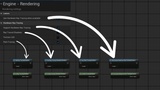
Saved/Config/WindowsEditor/Engine.ini – when run inside the Unreal Editor
Saved/Config/Windows/Engine.ini – when run in a packaged build
This allows full persistence across sessions, launches, and packaged builds!
(no temporary runtime-only console commands are used)
This is not equivalent to executing runtime console commands (e.g., r.RayTracing), which only apply temporarily for the current session. Instead, the plugin writes directly to the configuration file, ensuring that changes are persistent. Once a setting is enabled or disabled, it remains in effect across future launches of the game or editor until explicitly changed again. (same as project settings change)
🔄 Important Notes
A restart of the engine or game is required for settings to take effect.
Ideal for creating:
In-game graphics settings menus
Developer toggles for testing performance modes
Visual debug or QA tools
✅ Benefits
🧩 100% Blueprint-exposed – no C++ setup needed
📝 Persistent configuration system integration
🧠 Works in editor and packaged builds (Win64)
🔁 No reliance on temporary runtime commands
🎯 UE5.0 to UE5.5 compatibility